Introduction
When you create a new project in Xcode right now, this is what you typically see – and this is the template you typically use – iOS > App:
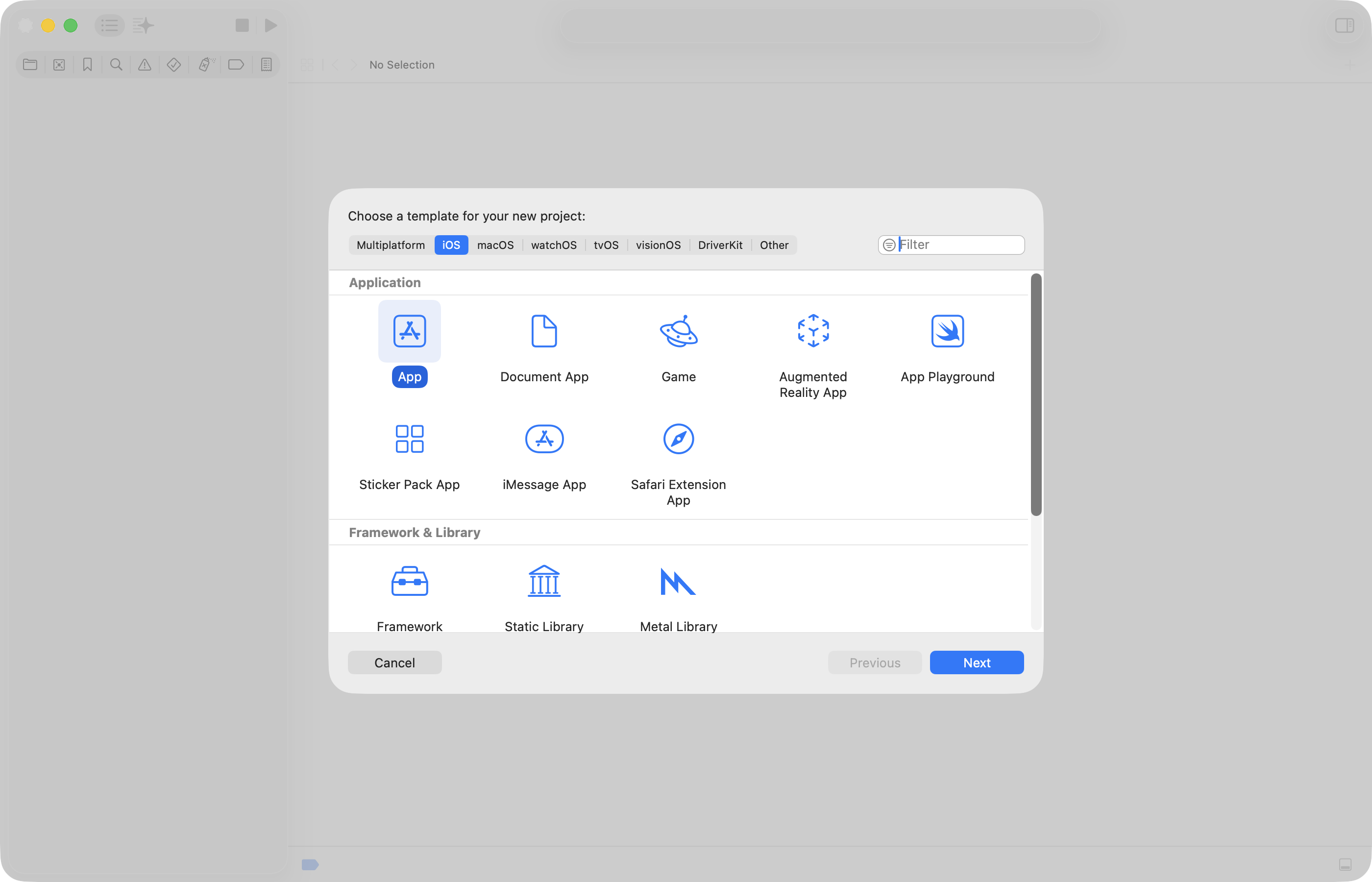
However, the resulting project:
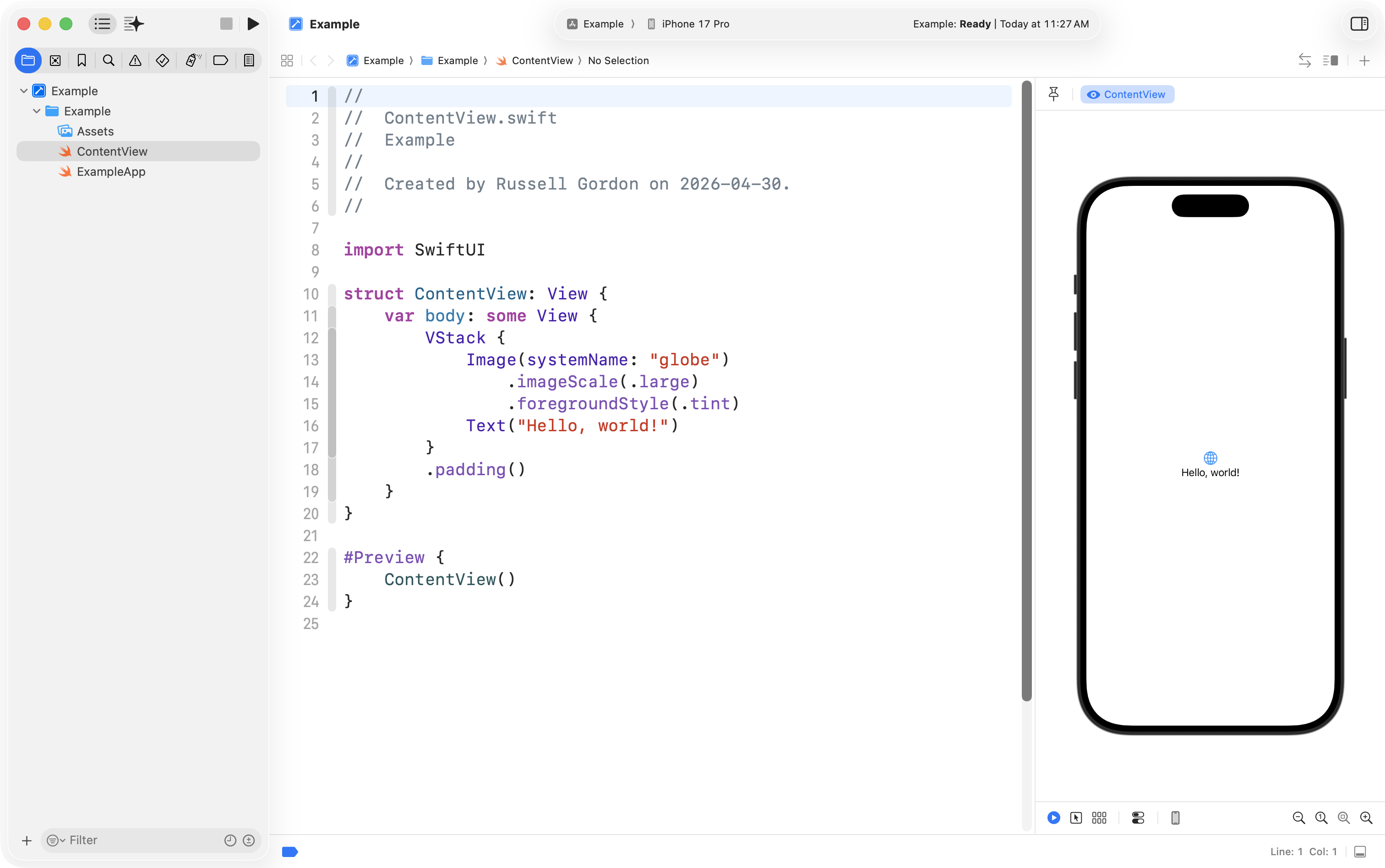
… is not all that useful.
Each time you create a new project, for example, you will need to change from using blue folders to using grey groups, and add groups for:
ModelViewModelsViews
This gets tedious.
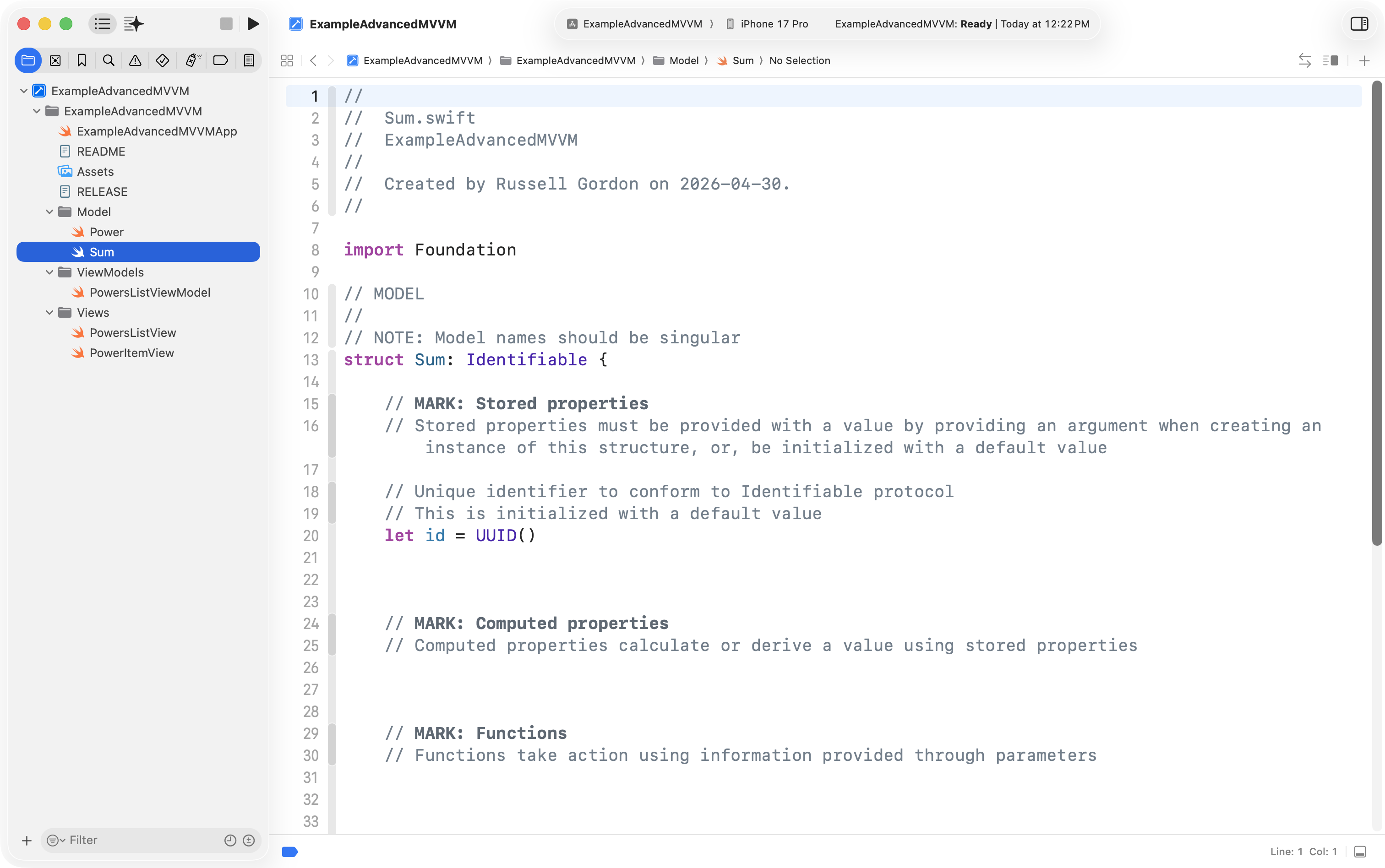
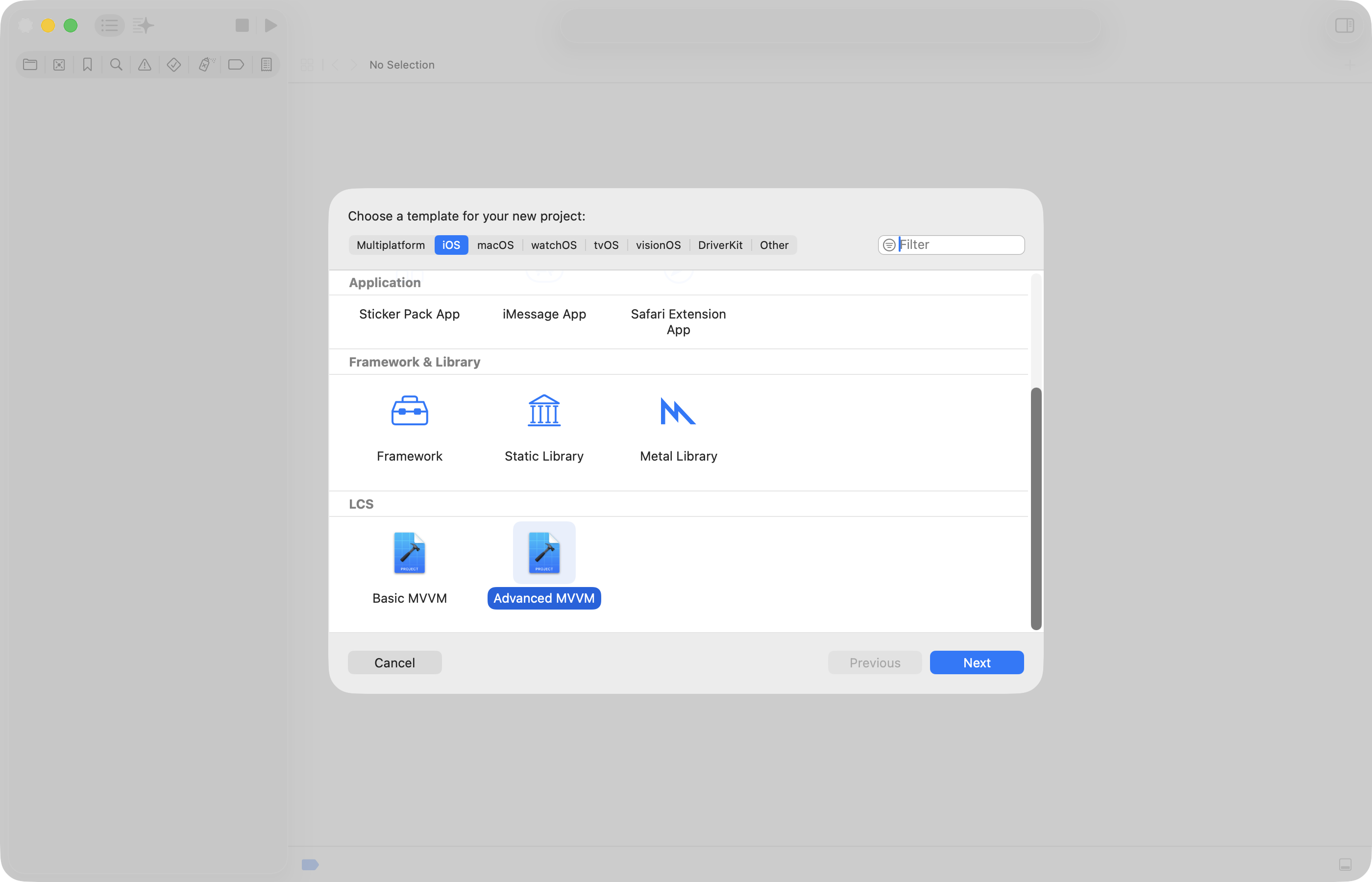
What if, instead, you could use a template like this:
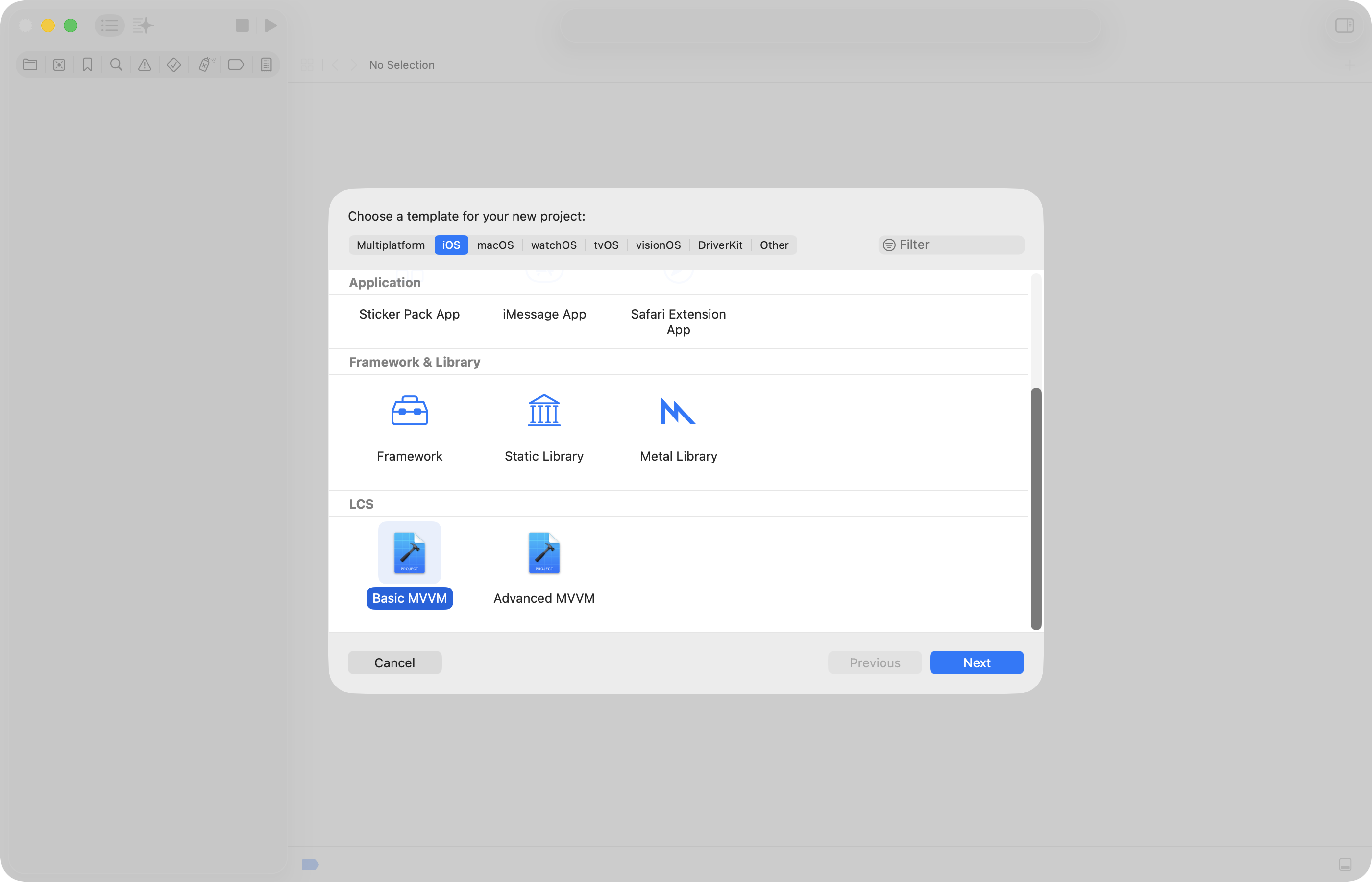
… and get this, automatically?
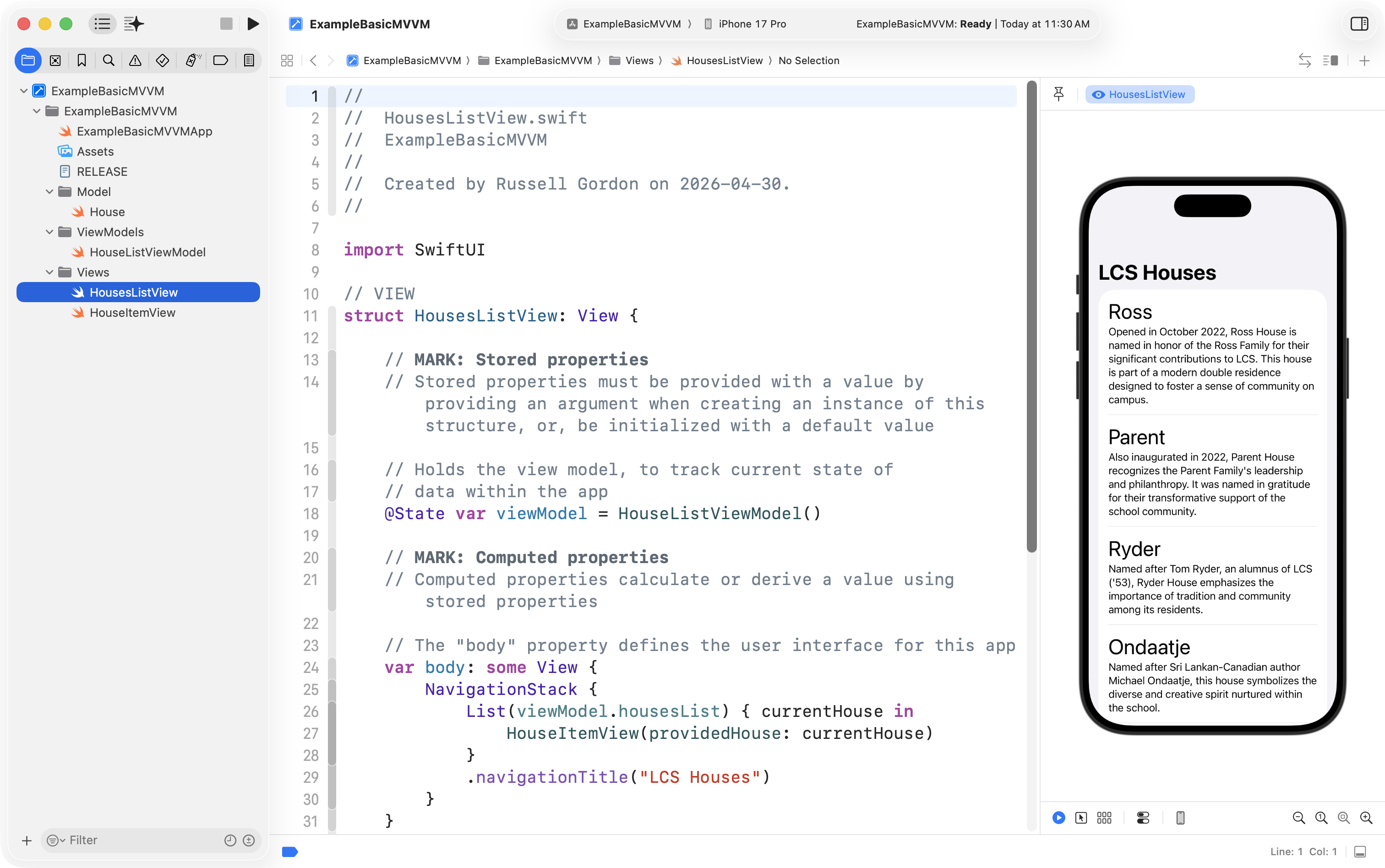
Or use a template like this:
… and get this, automatically?
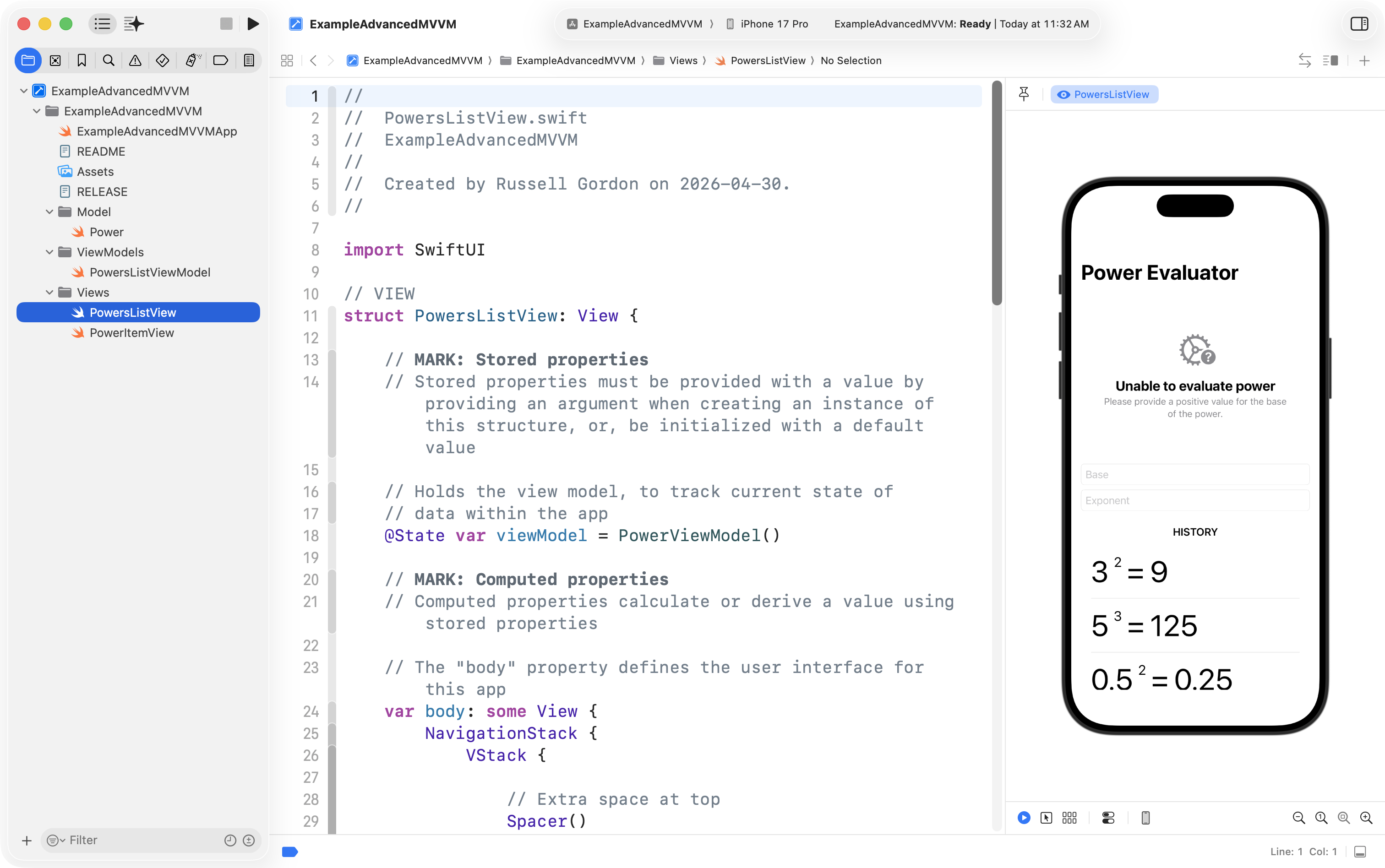
That is what we will set up now.
Install the new templates
To install these templates, begin by opening the Terminal app on your Mac.
You can use activate Spotlight using the Command-Spacebar keyboard shortcut to search for and then open Terminal:
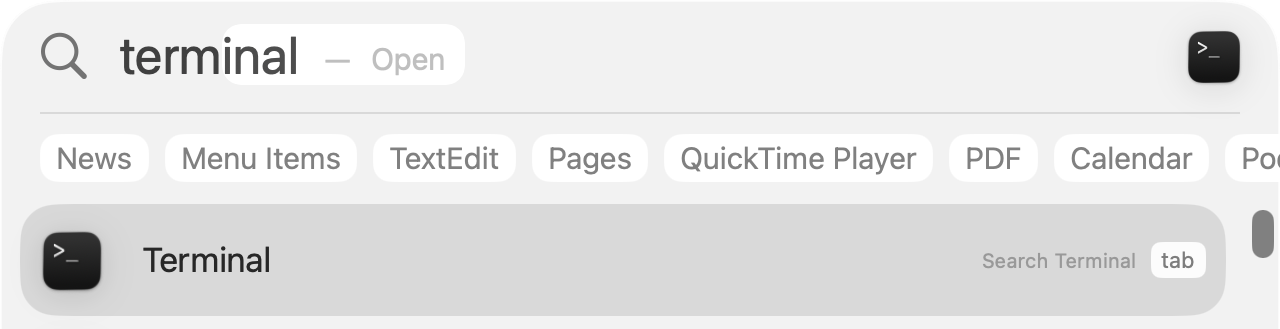
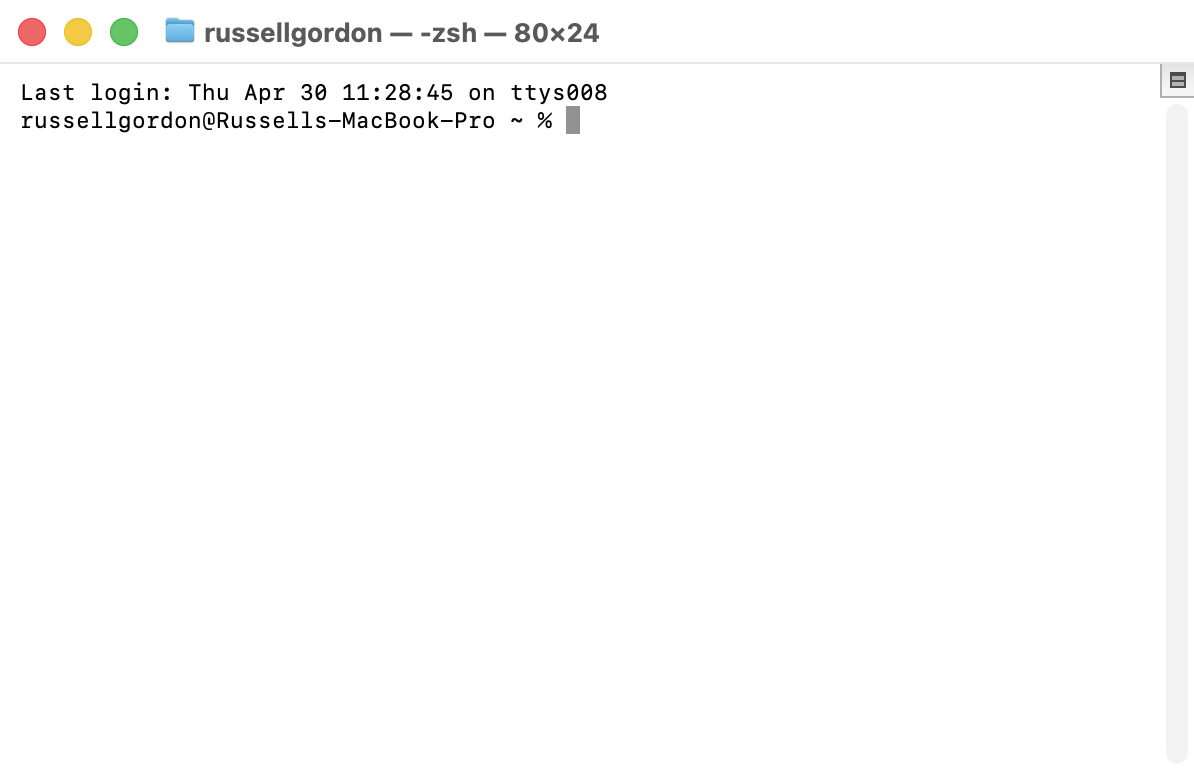
You will see a window that looks something like this appear:
Now, please copy this entire command into your clipboard, then paste it into the Terminal window, and press the Return key to actually run the command:
curl -sL https://www.russellgordon.ca/lcs/templates.zip -o /tmp/templates.zip && unzip -qo /tmp/templates.zip -d /tmp/lcs-templates && chmod +x /tmp/lcs-templates/templates/install_lcs_templates.sh && /tmp/lcs-templates/templates/install_lcs_templates.sh && rm -rf /tmp/templates.zip /tmp/lcs-templatesTIP
What that command does, step by step:
Part Purpose curl -sL https://www.russellgordon.ca/lcs/templates.zip -o /tmp/templates.zipDownload silently ( -s), following redirects (-L), saving to/tmp/templates.zipunzip -qo /tmp/templates.zip -d /tmp/lcs-templatesExtract quietly, overwriting existing files ( -qo) into a temporary folder, preserving the folder structurechmod +x /tmp/lcs-templates/templates/install_lcs_templates.shMake the install script executable /tmp/lcs-templates/templates/install_lcs_templates.shRun the install script, which copies the templates to ~/Library/Developer/Xcode/Templates/rm -rf /tmp/templates.zip /tmp/lcs-templatesRemove the downloaded zip file and the extracted folder
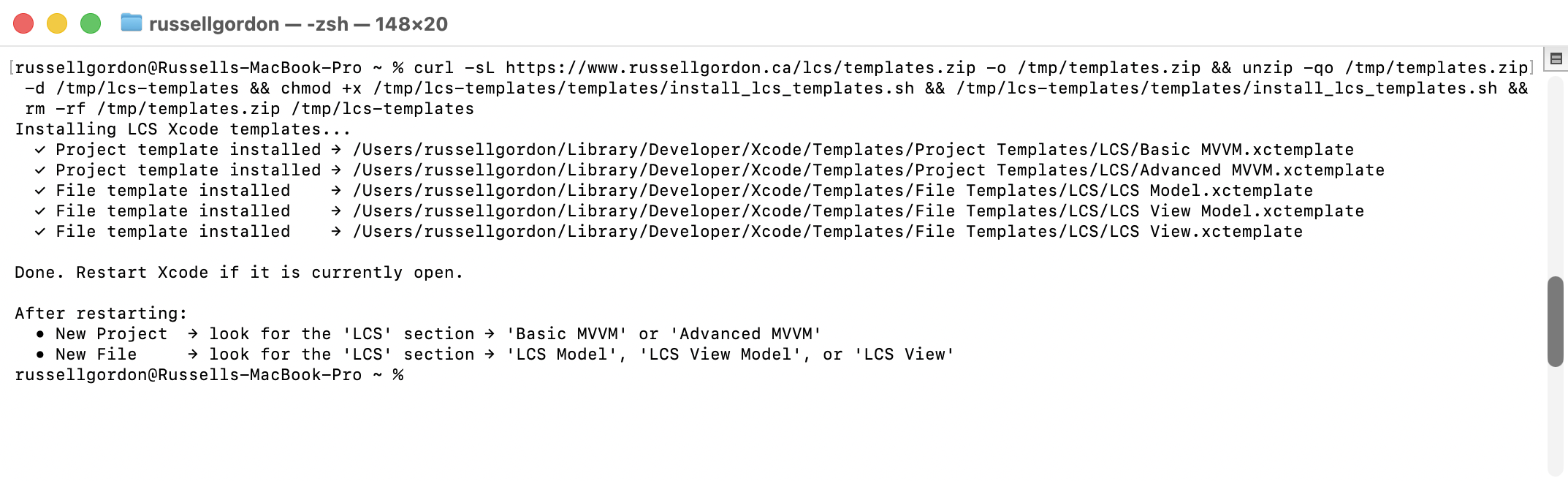
After running that command, your Terminal window should look like this (you might need to resize to see the output without wrapping):
Then, restart Xcode, by quitting it using the Command-Q keyboard shortcut, then launching the app again.
Application templates
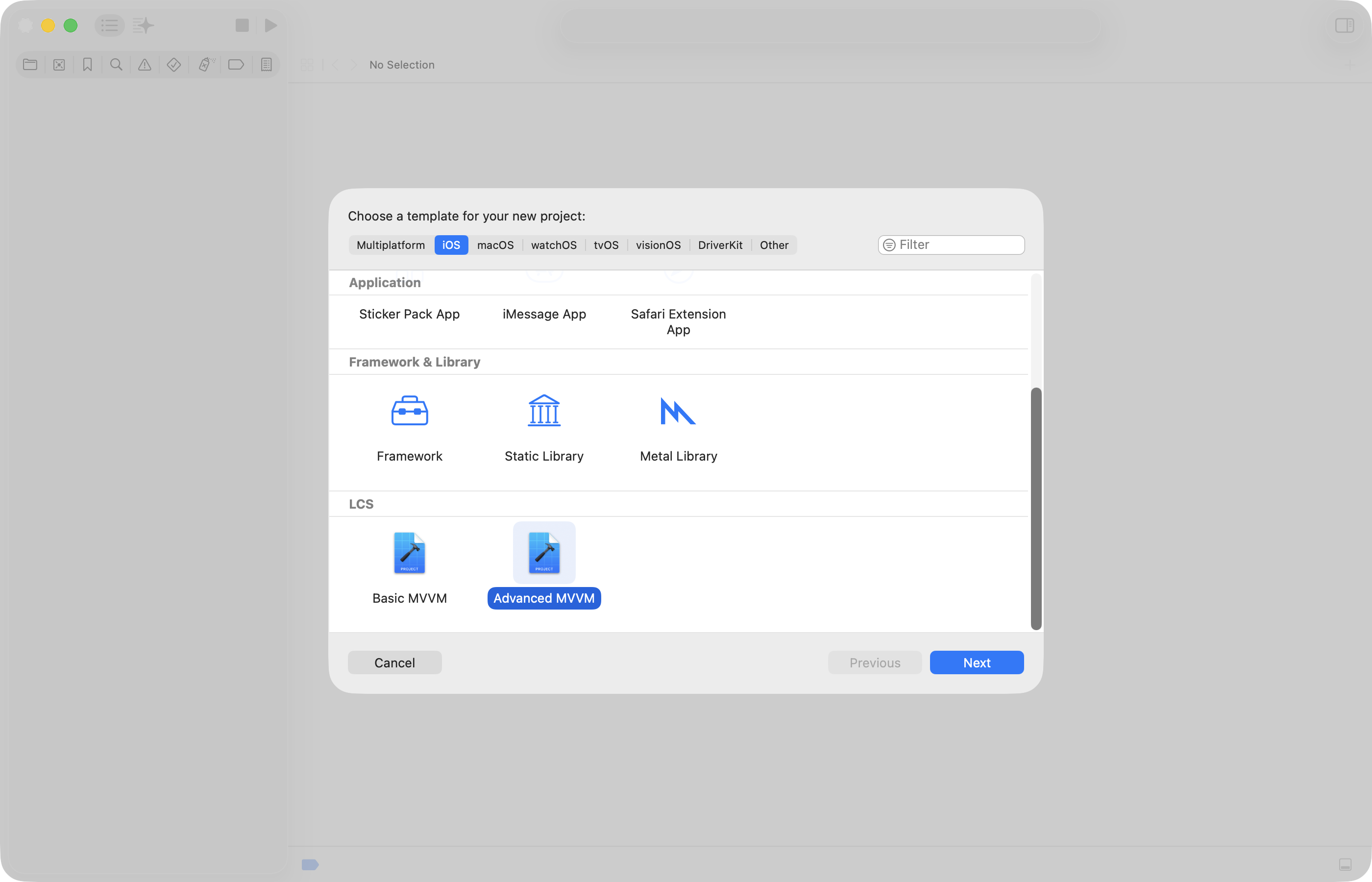
When you have closed and then opened Xcode again, the application templates should be visible when creating a new project:
File templates
When you add a new file to an existing project using a template:
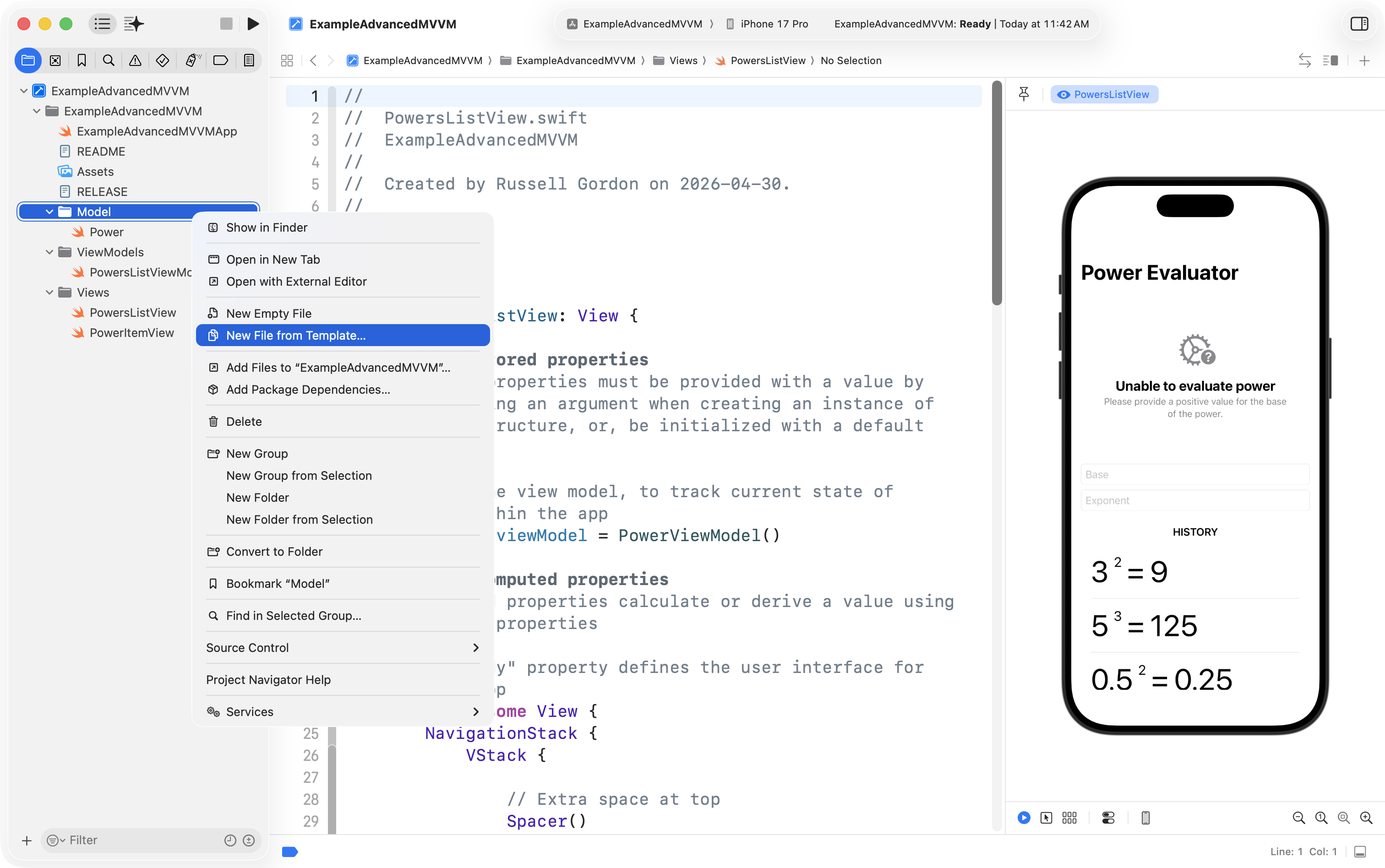
… you should now also have the choice of adding an example file intended to be used as a model, view model, or view:
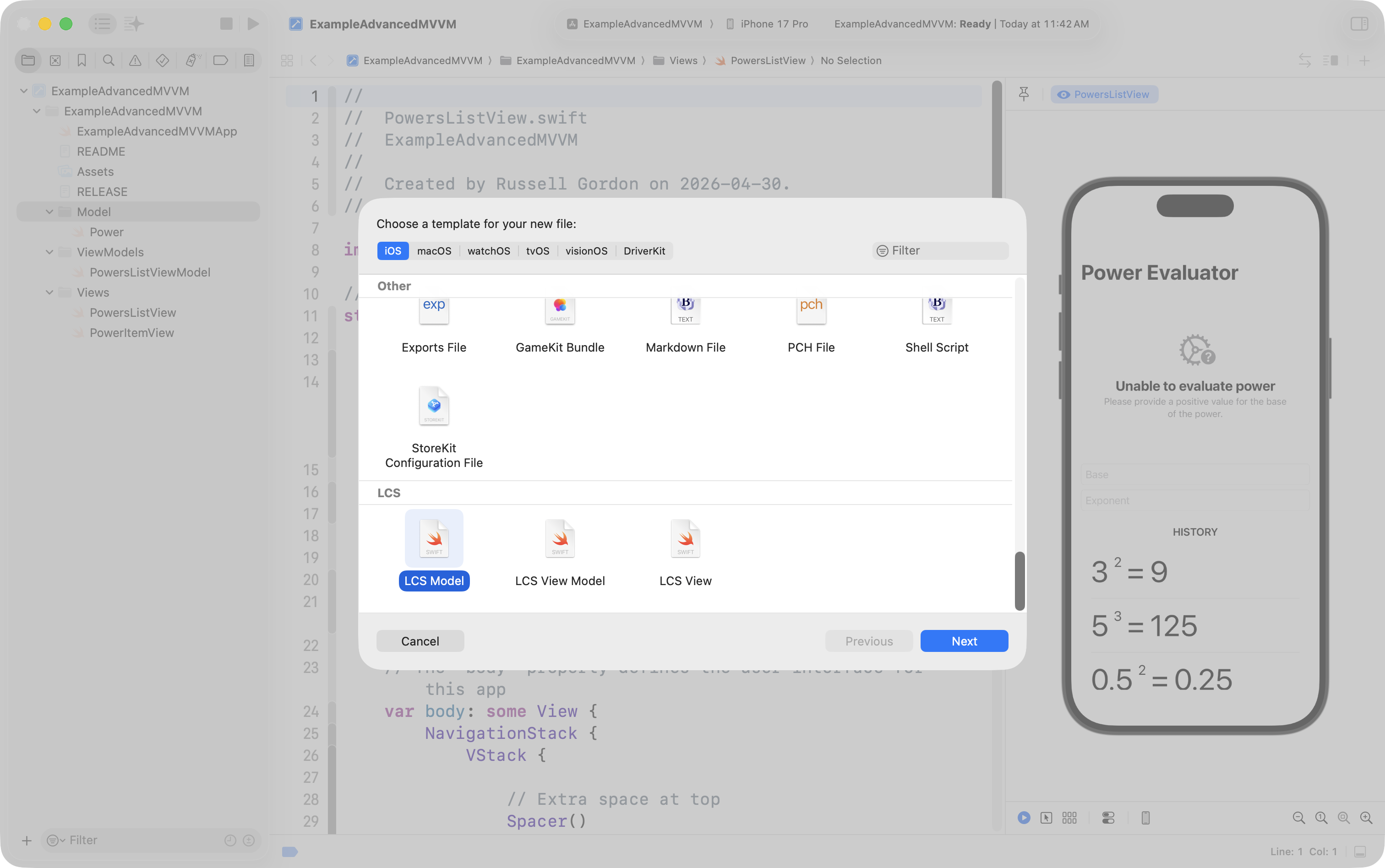
Here an example of the resulting file, if the name Sum was chosen: