Xcode is a large application that serves many purposes for software developers.
Among many other tasks that they perform on a regular basis, software developers write code.
However, we – as you are now a software developer – do not always want to write code as part of a large project.
That is where an Xcode playground is useful – it is a place to try out ideas with code outside of the context of a large project.
Make a new playground
To create a playground, make sure that Xcode is in the foreground on your computer by clicking it’s icon in the Dock:
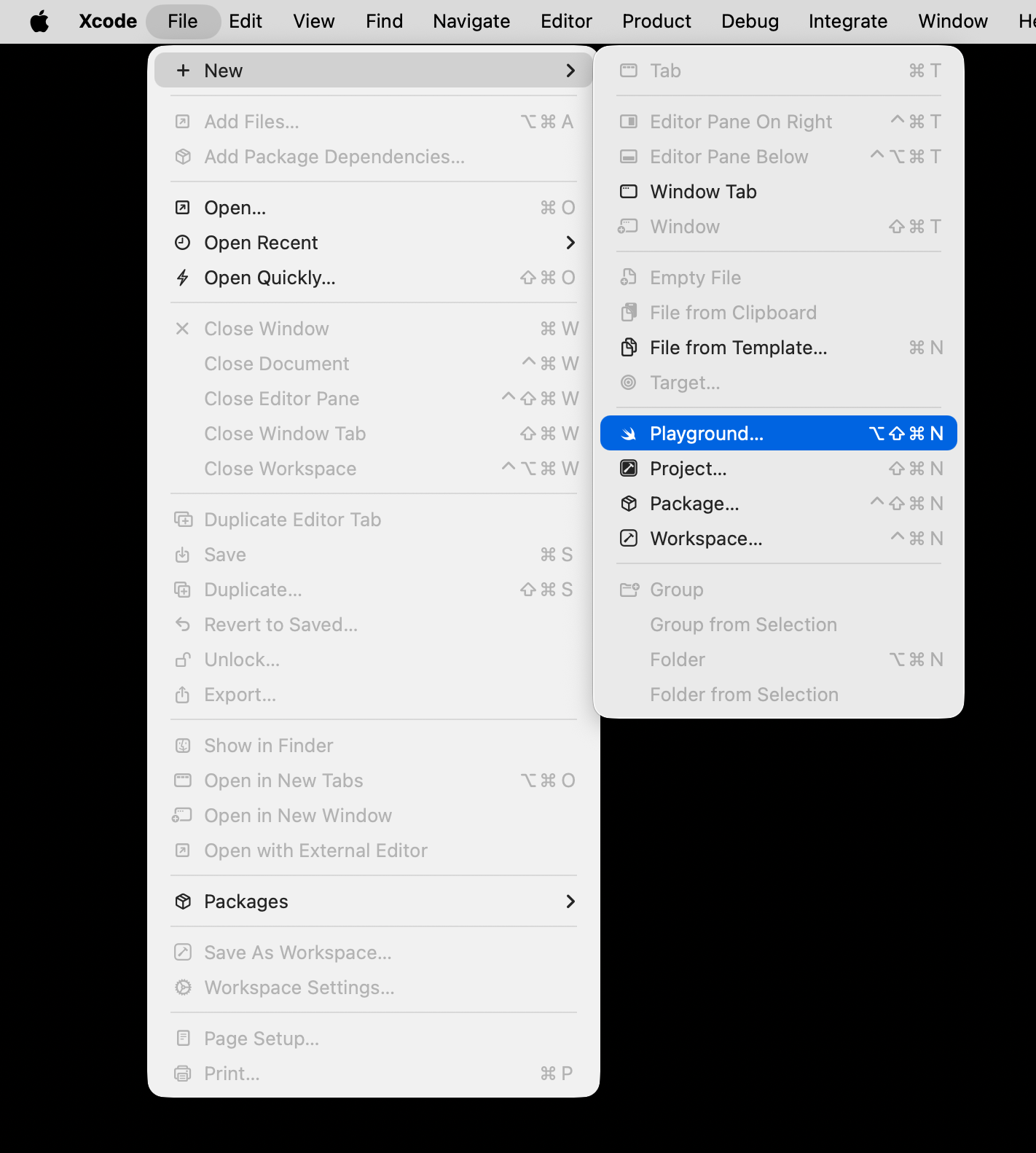
From the menu bar at top left, choose File > New > Playground…:
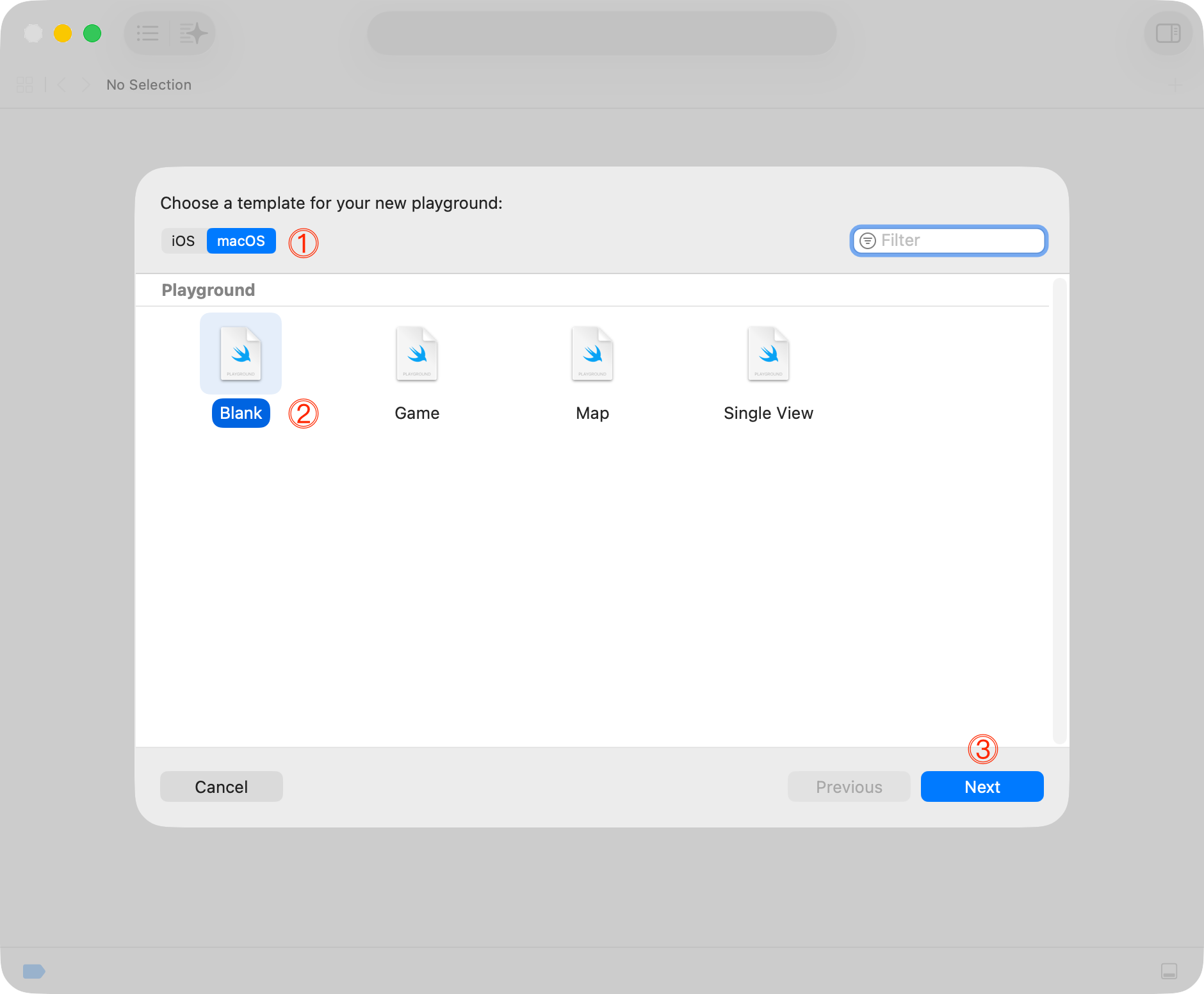
You will see the following window – here, choose the macOS tab, then Blank, and then Next:
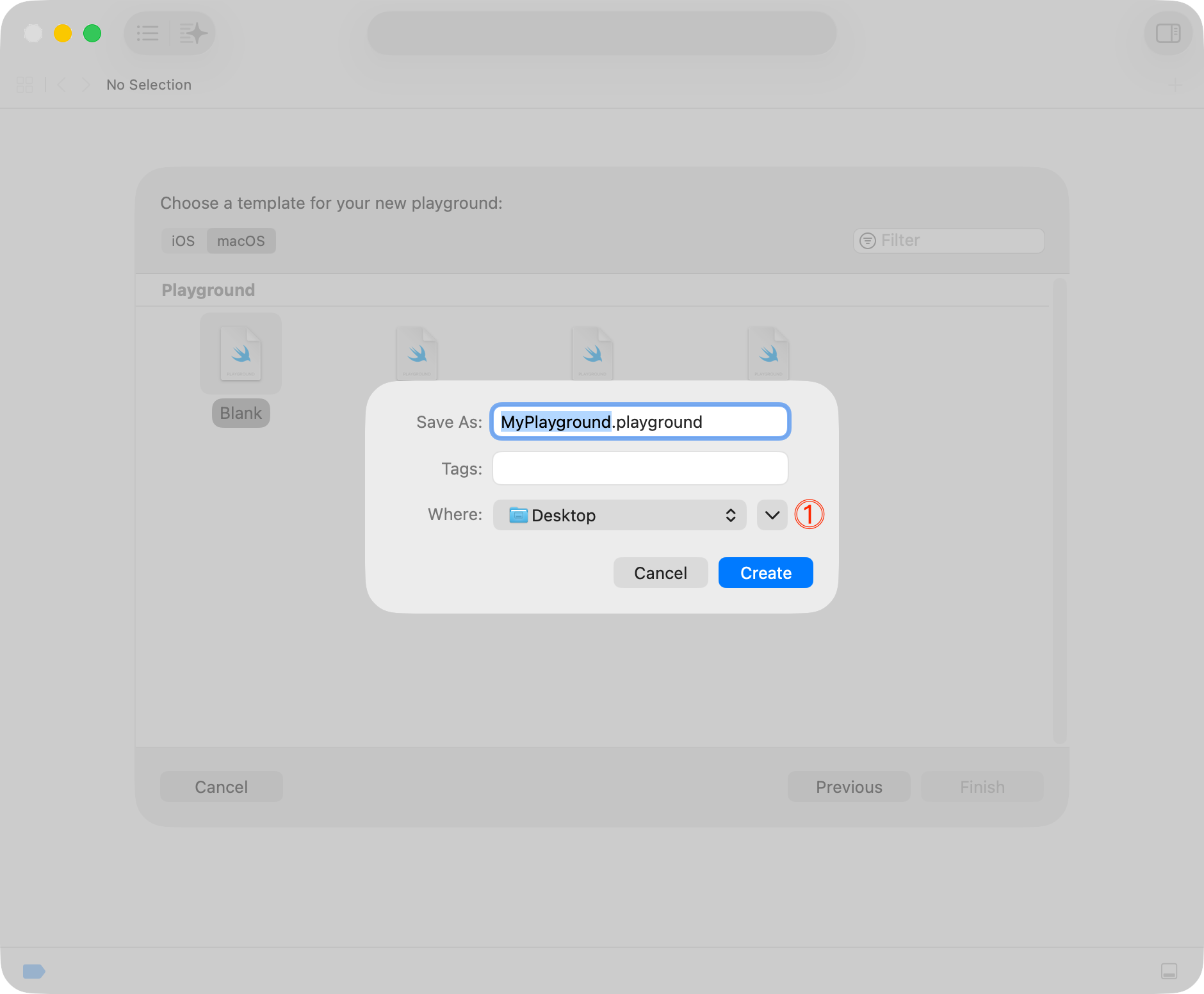
On the next screen, you are choosing where to save your playground.
You may see a window that looks like the one below – if you do, press the button with the downward facing arrow to open the larger file navigation interface:
Now you have the ability to see your Finder shortcuts (at left) and more easily navigate around the file system on your computer:
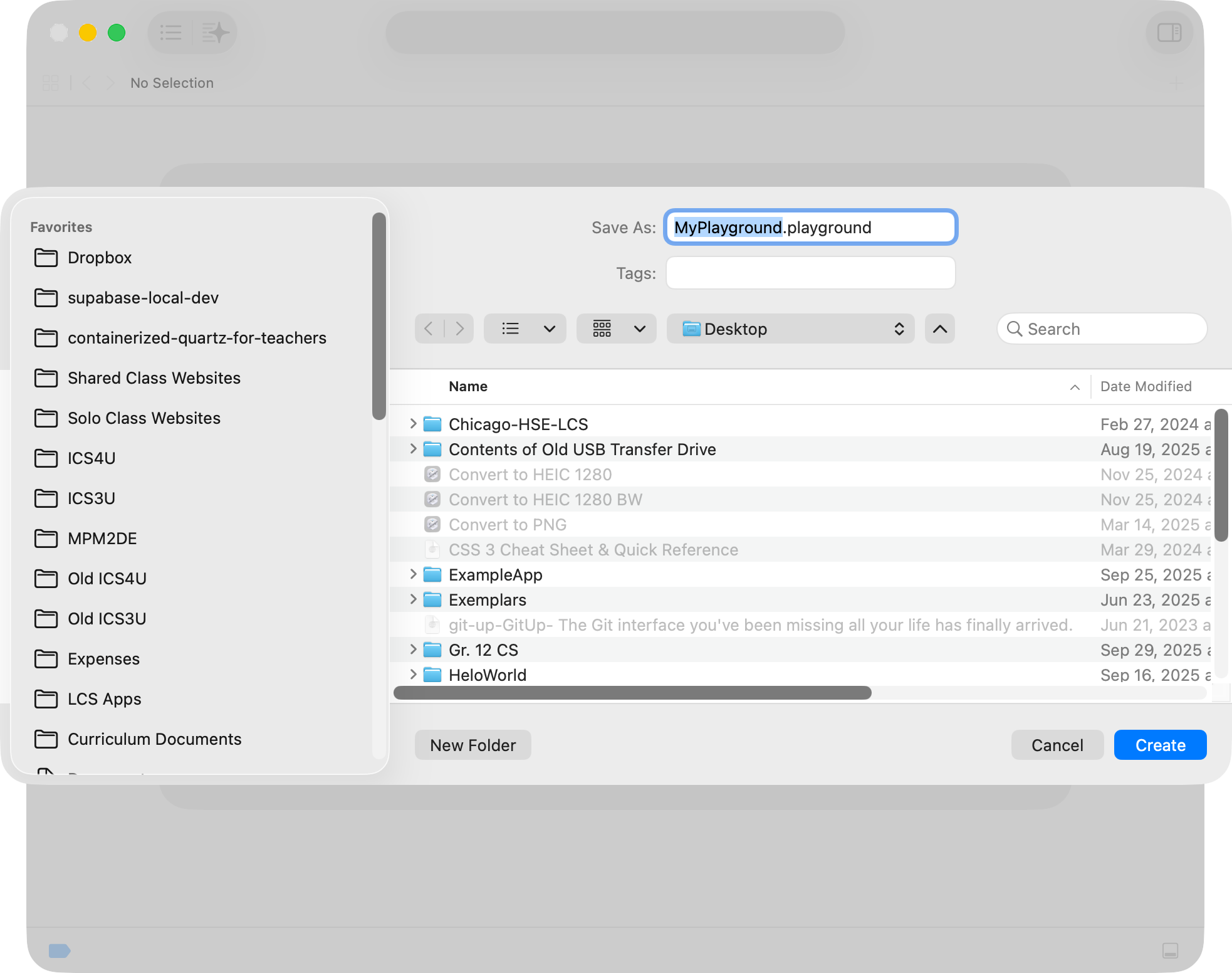
Let’s keep things organized.
Navigate to the folder where you want to save your Xcode playground.
For example, you might navigate to your Desktop, then use the New Folder button:
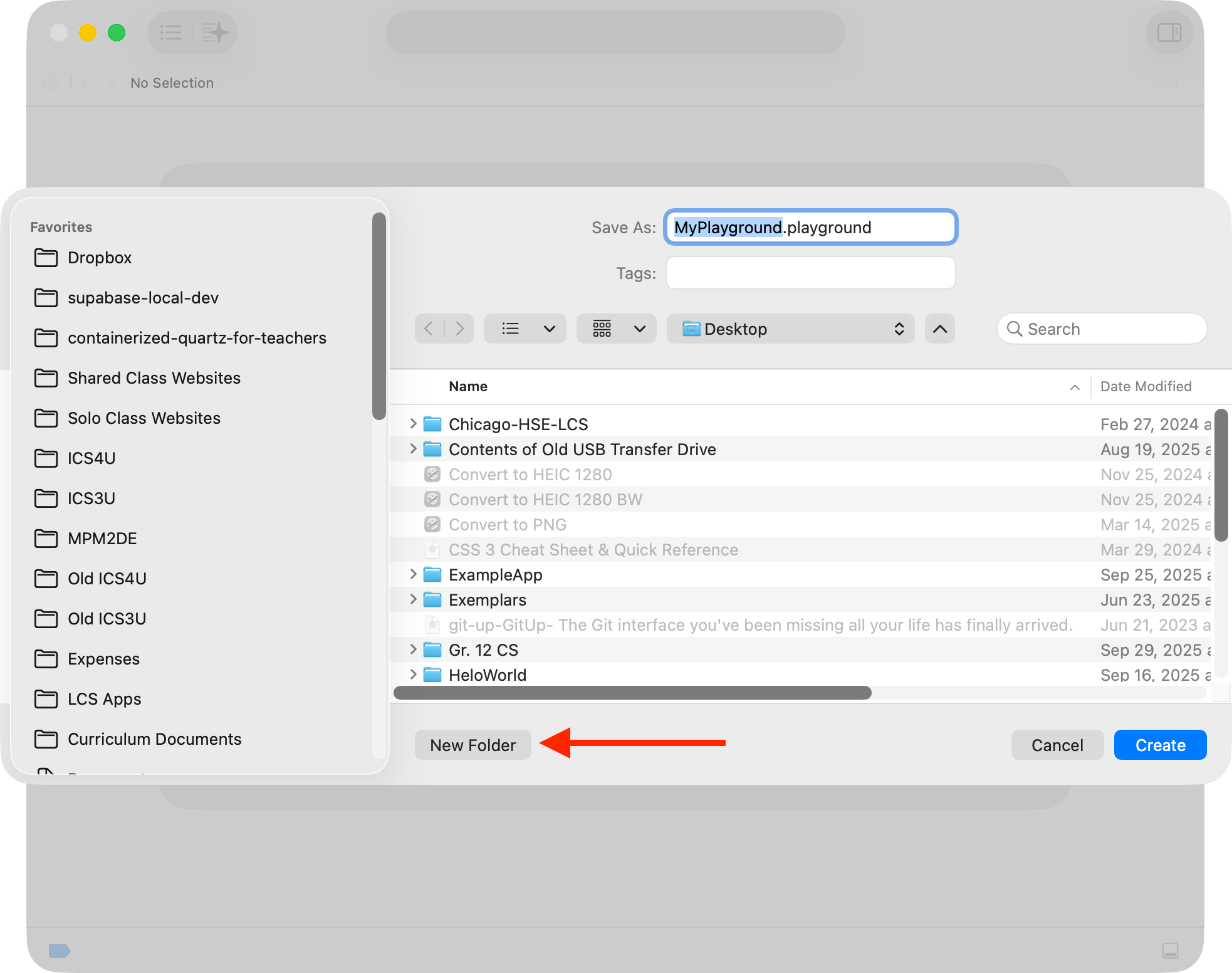
… to create a folder for the course you are in:
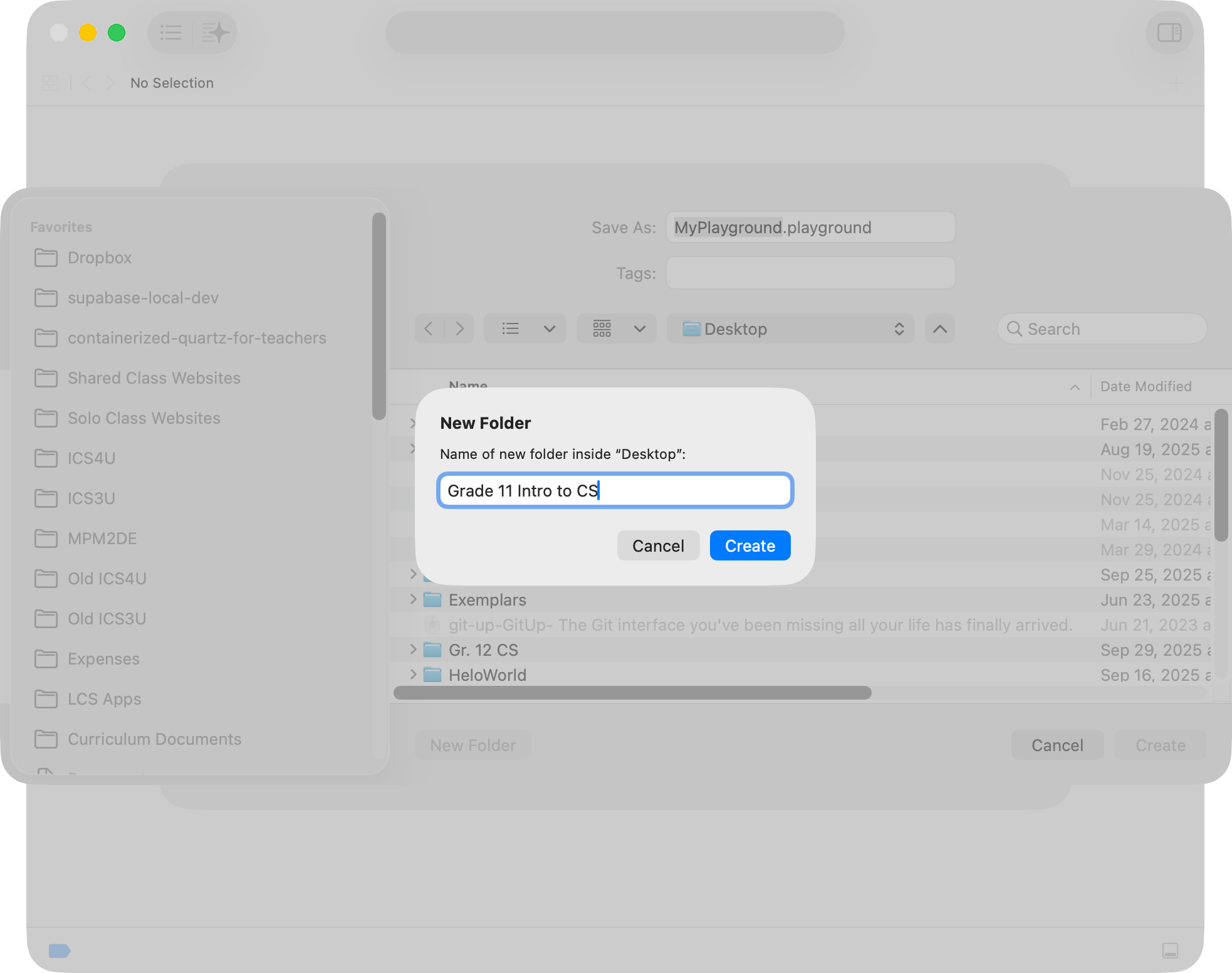
Finally, save your playground using a descriptive name.
What name you select will depend on what concept or idea you are exploring:
