Xcodes is an app used to manage the installation of different versions of Xcode:
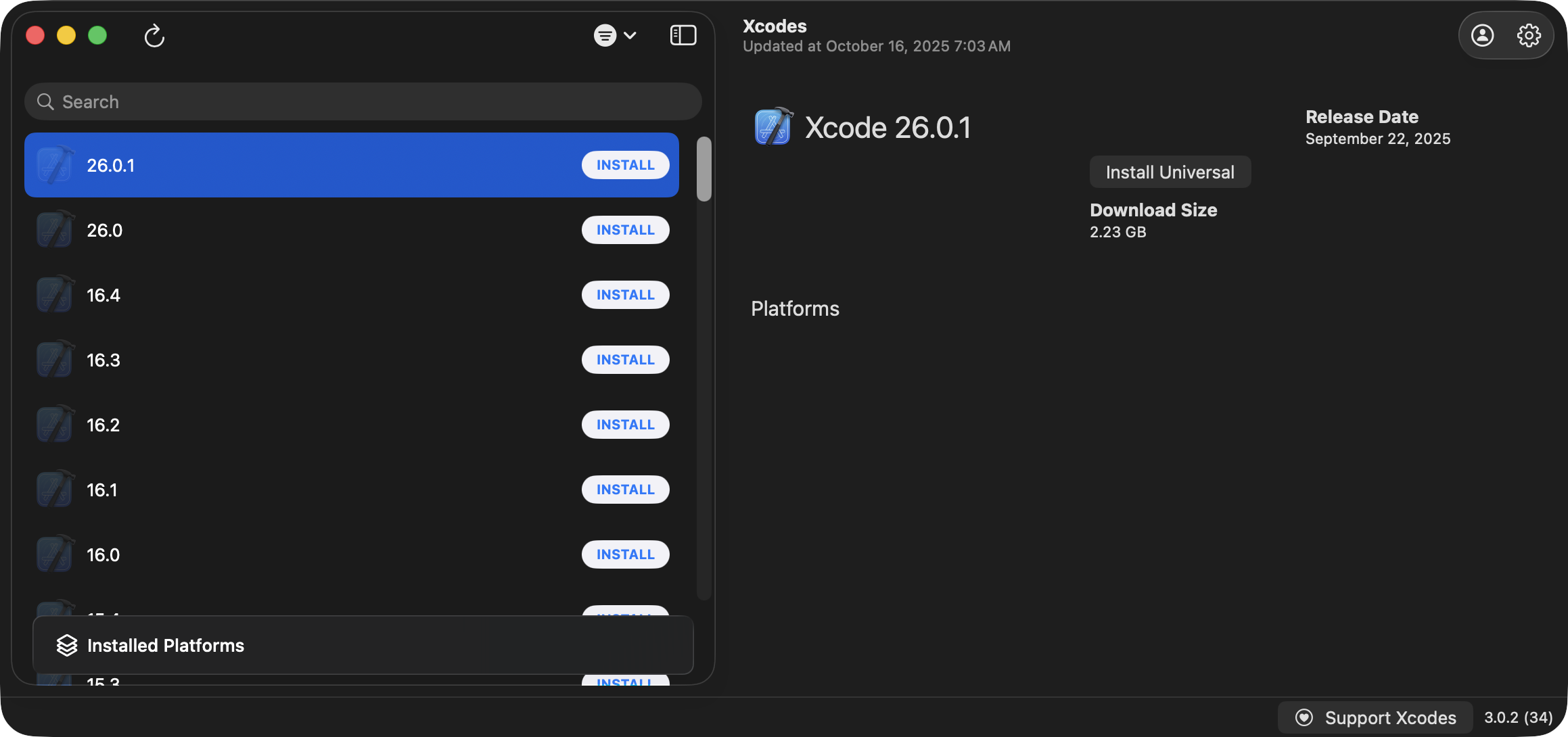
This short guide will help you to ensure that you have the correct version of Xcode installed on your computer.
App Store Distribution
IMPORTANT
It is possible to install Xcode via the Mac App Store, but this is not recommended.
Using the Mac App Store version of Xcode will result in unscheduled updates that will prove inconvenient to you later in the school year.
So, before continuing, check your Applications folder:
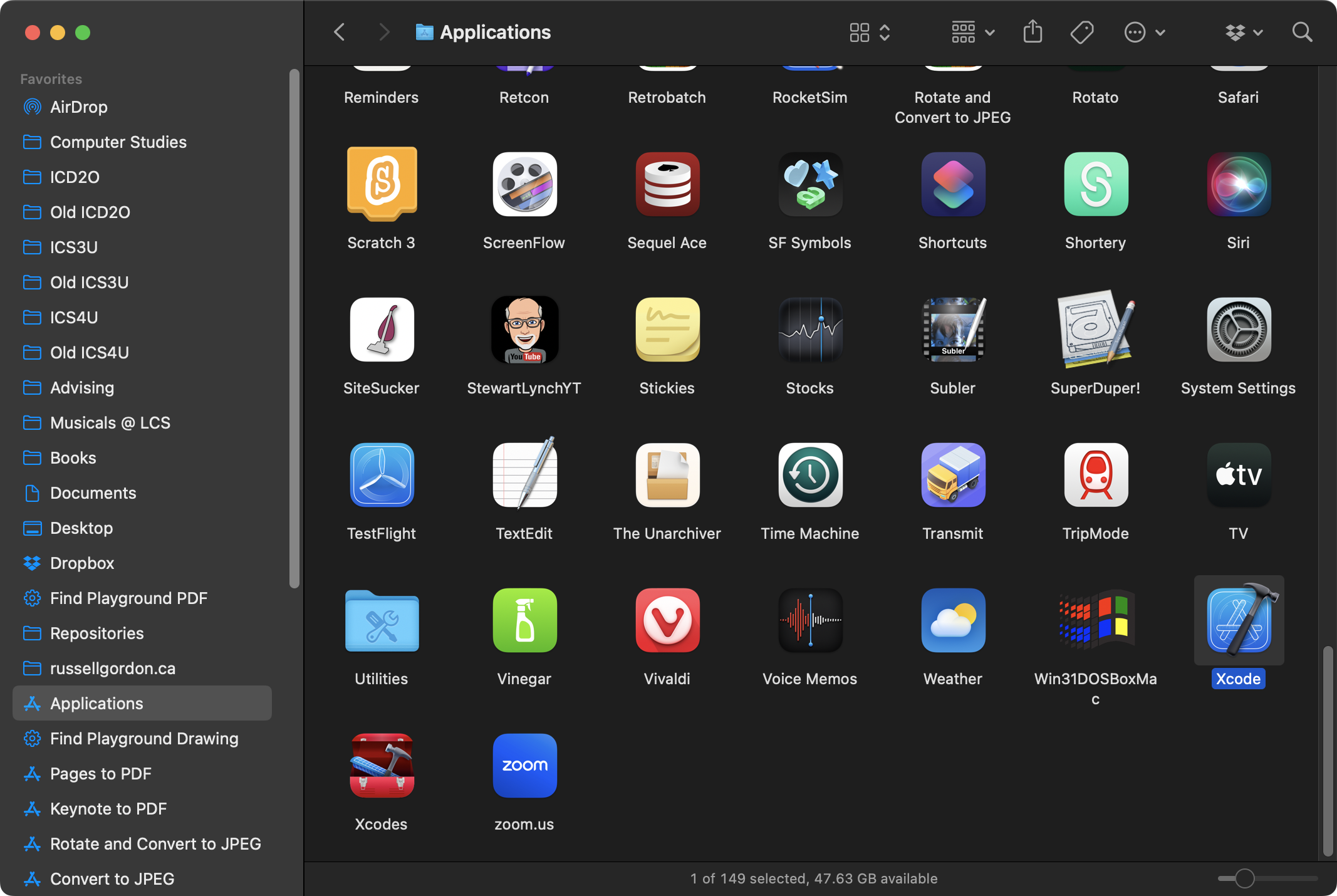
If you see Xcode installed as shown – with the name Xcode alone – please move that version to the trash on your system:
.png)
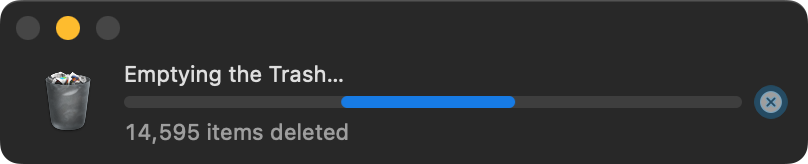
Then empty the trash on your system to free up disk space:

Emptying the trash may take a couple of minutes to complete:
Installing Xcodes
If you do not have Xcodes on your computer yet, here is a direct link to download Xcodes.
Once downloaded, you will have a compressed file:
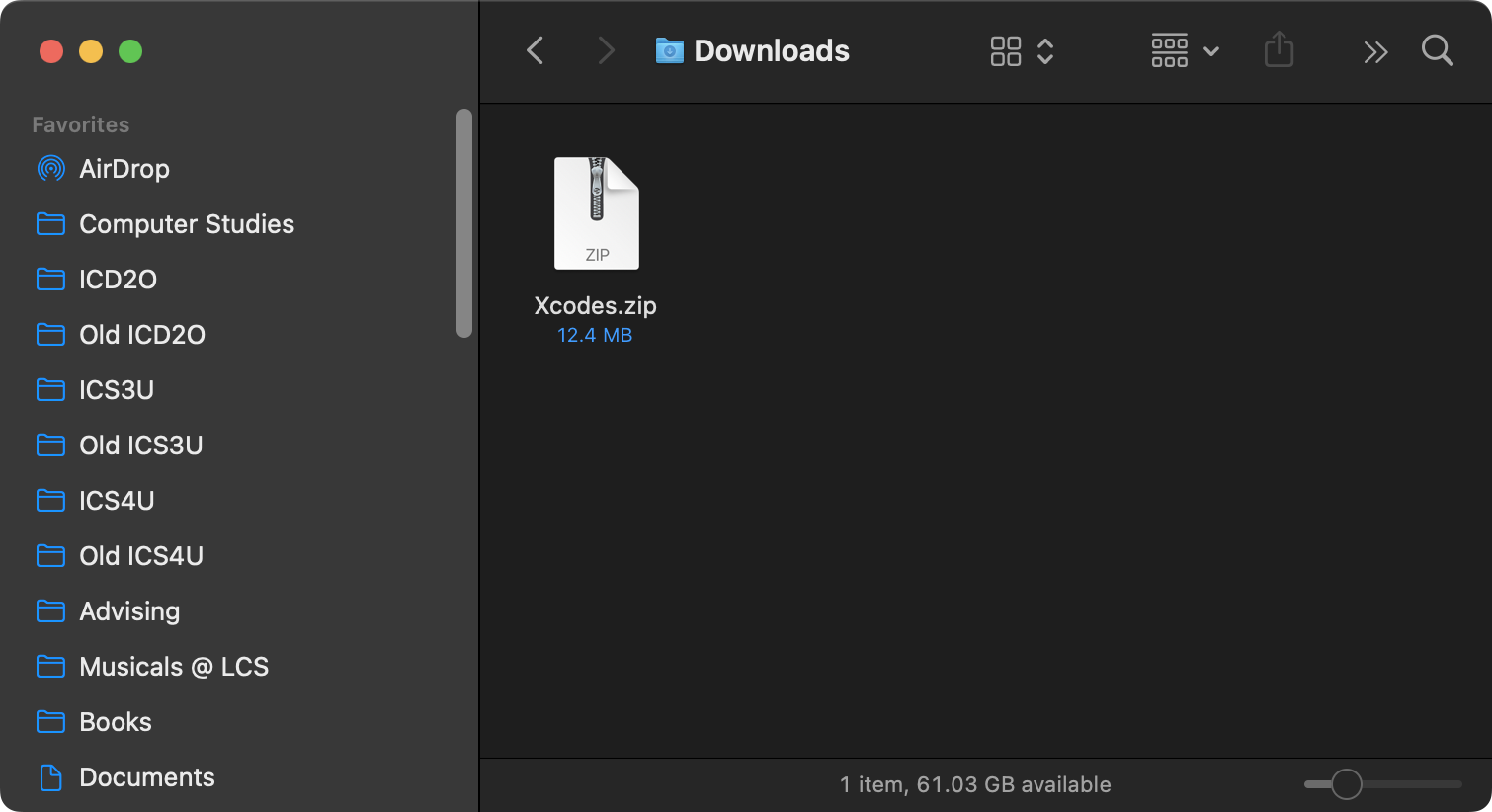
Double-click the file to decompress it:
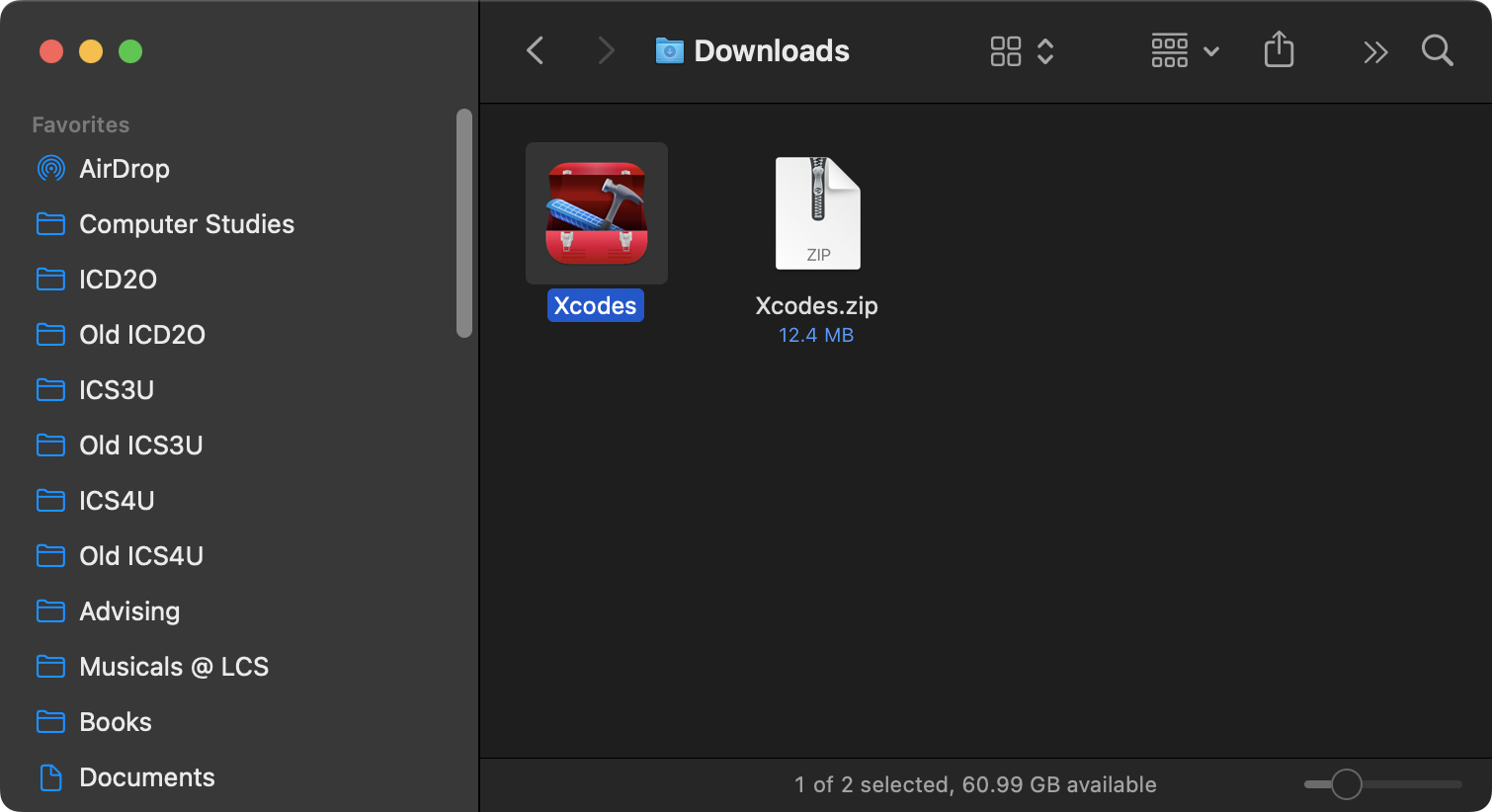
Now drag the resulting Xcodes app to your Applications folder:
Show release versions only
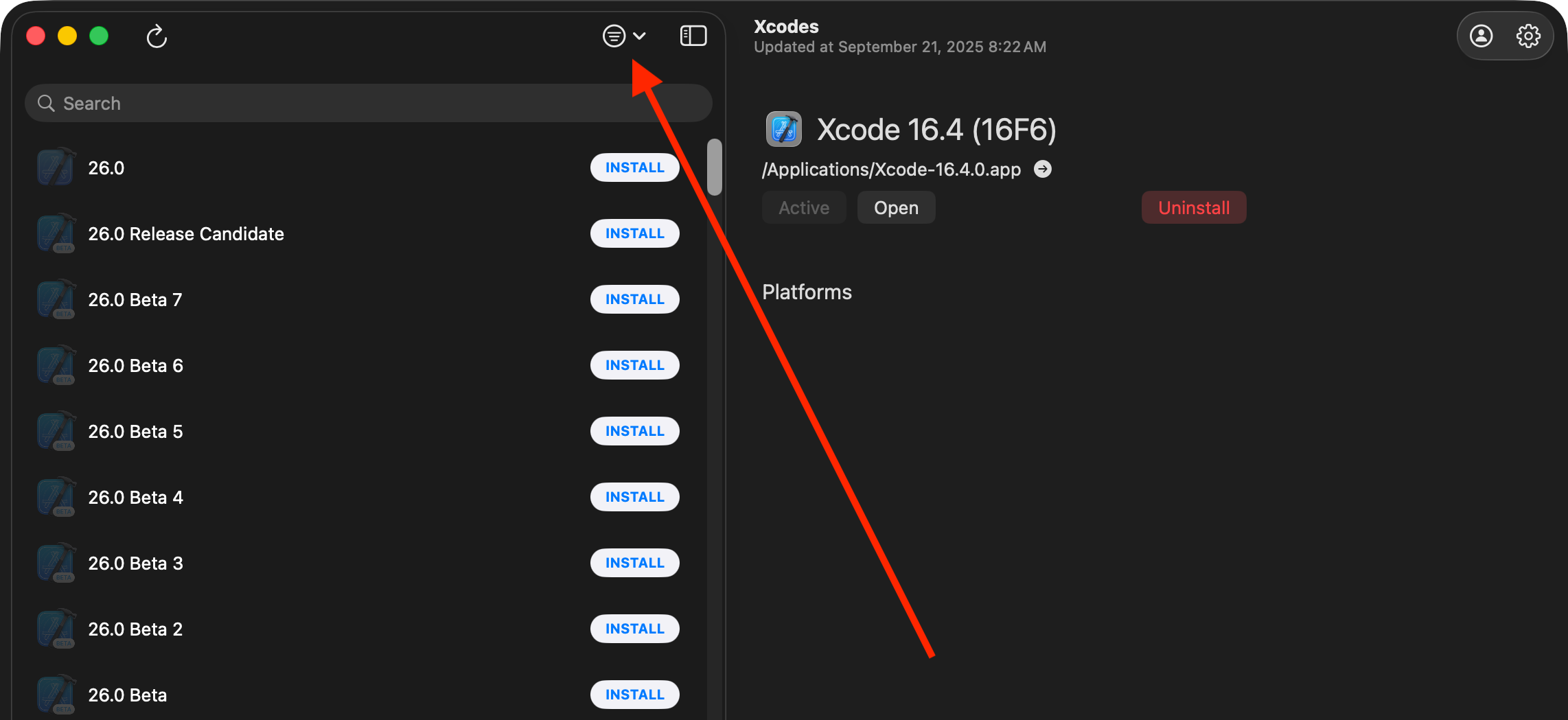
By default Xcodes shows all versions of Xcode – versions that are official releases, as well as beta versions.
We want to see only official releases.
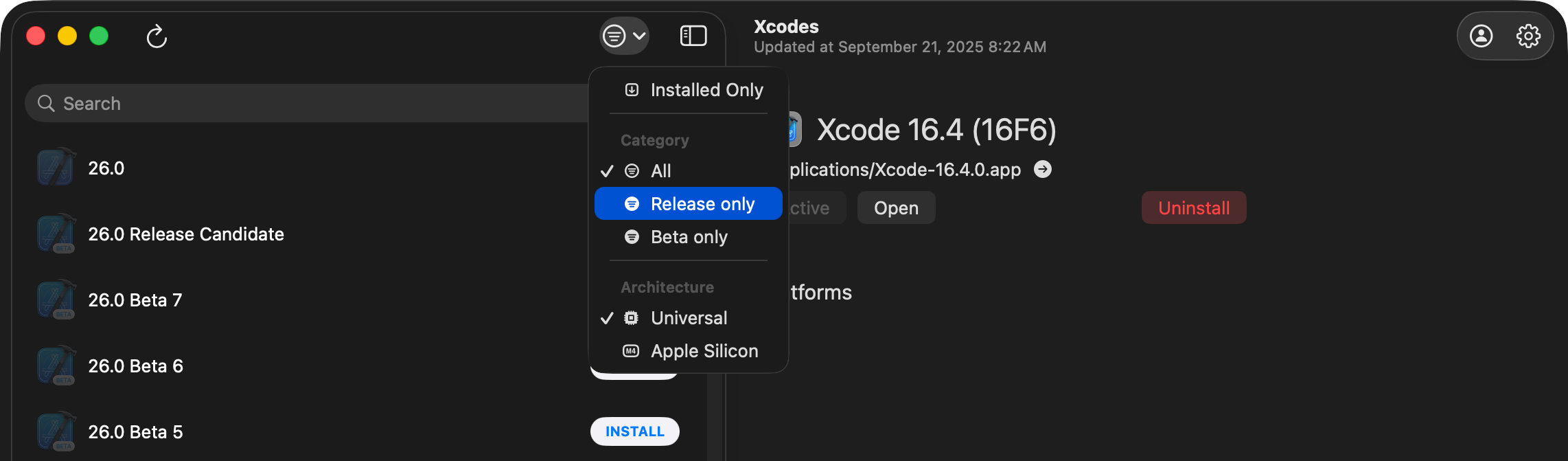
Press the Filter button once:
So that only released (non-beta) versions of Xcode show up:
Sign in
Most of you created an Apple ID tied to your LCS email address that you used to access the Apple Developer Program.
Use that username and password to sign in to Xcodes, like this:
Install Xcode
Now that you have signed in, you can use Xcodes to install the latest version of Xcode:
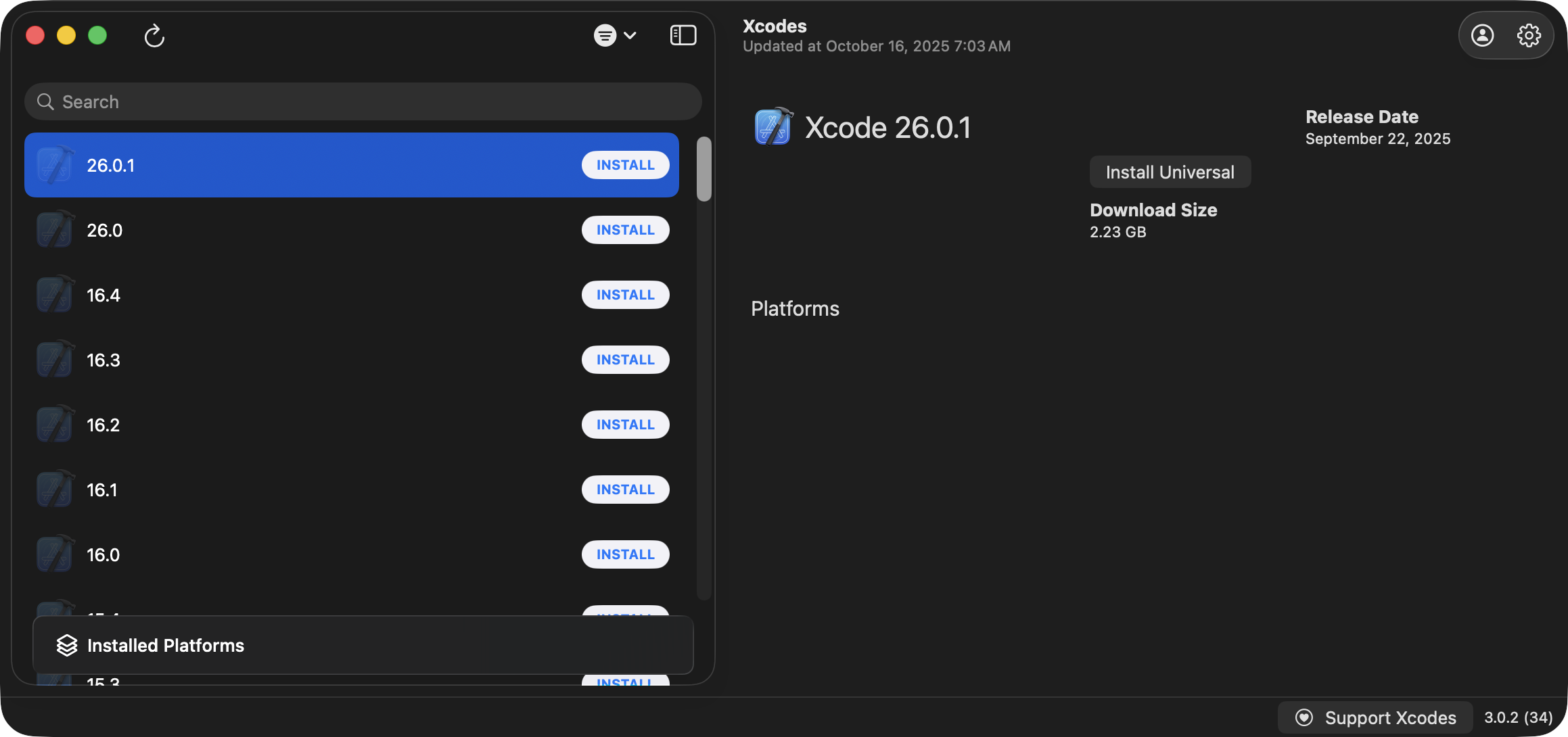
This will take a few minutes:
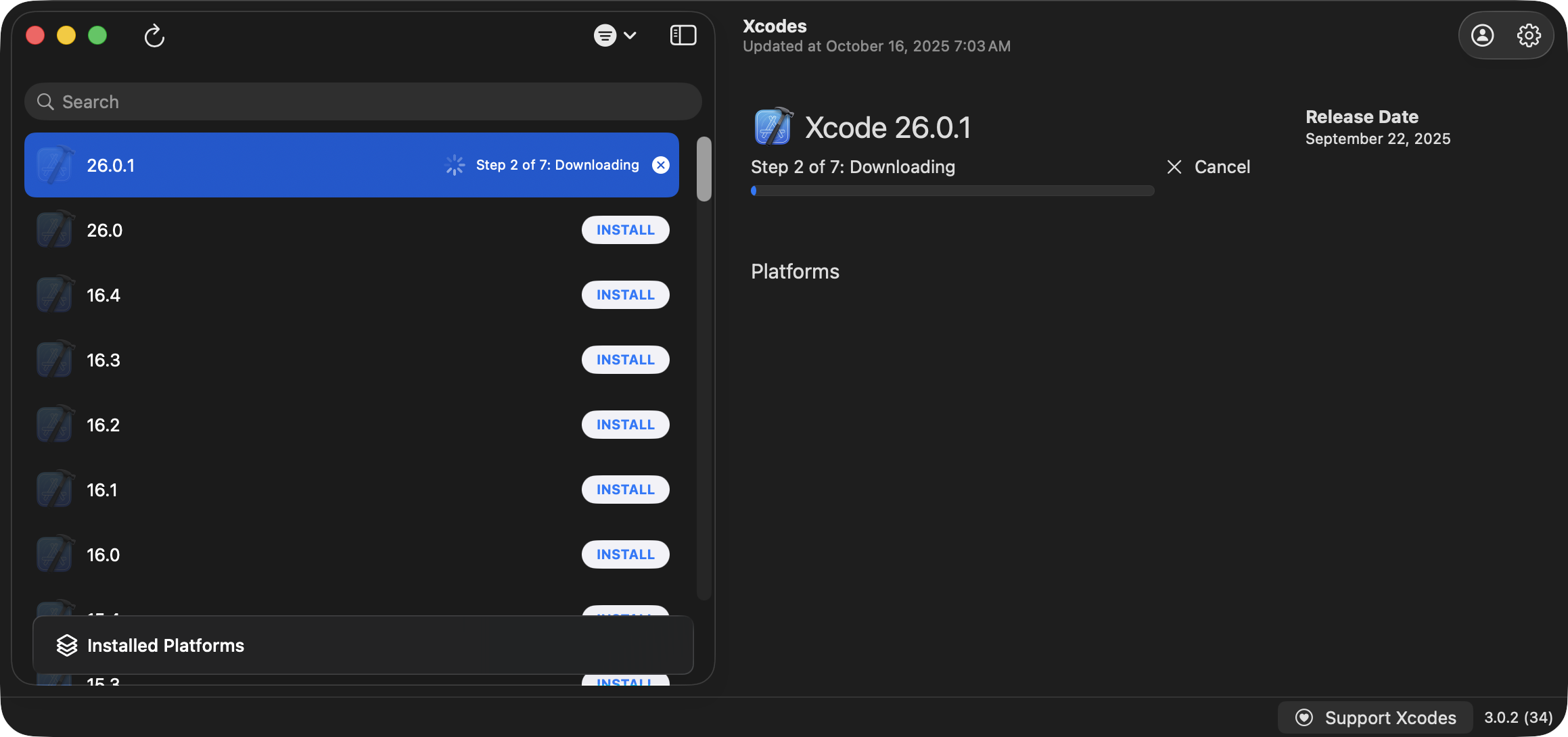
NOTE
Once Xcode has been downloaded, if this is the first time you’ve used Xcodes, you may see a message regarding the need to install a privileged helper tool – allow this to occur by pressing Install.
When you see a dialog prompting you for a username and password, provide the password you use to log in to your computer.
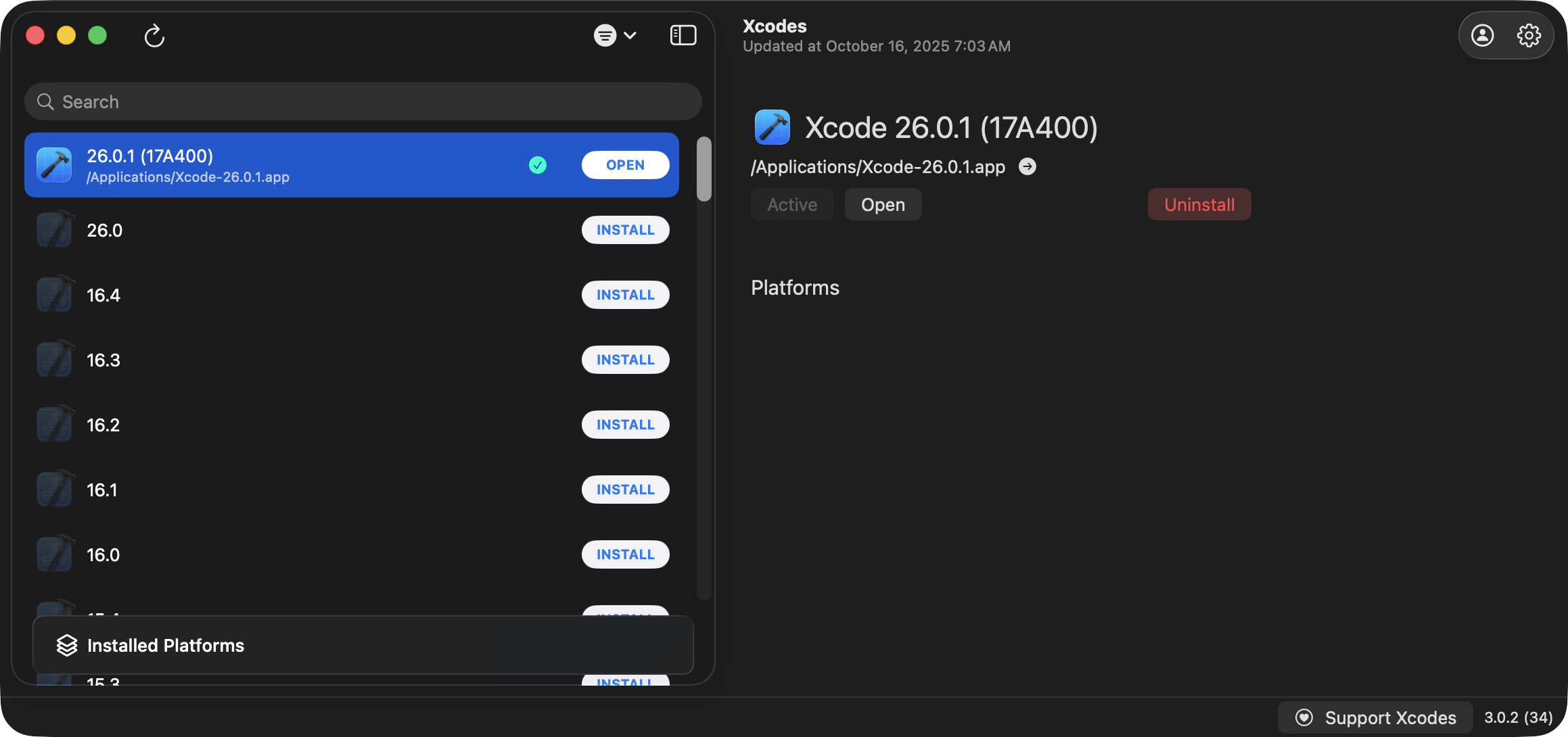
After Xcode has been installed, you should see something like the following:
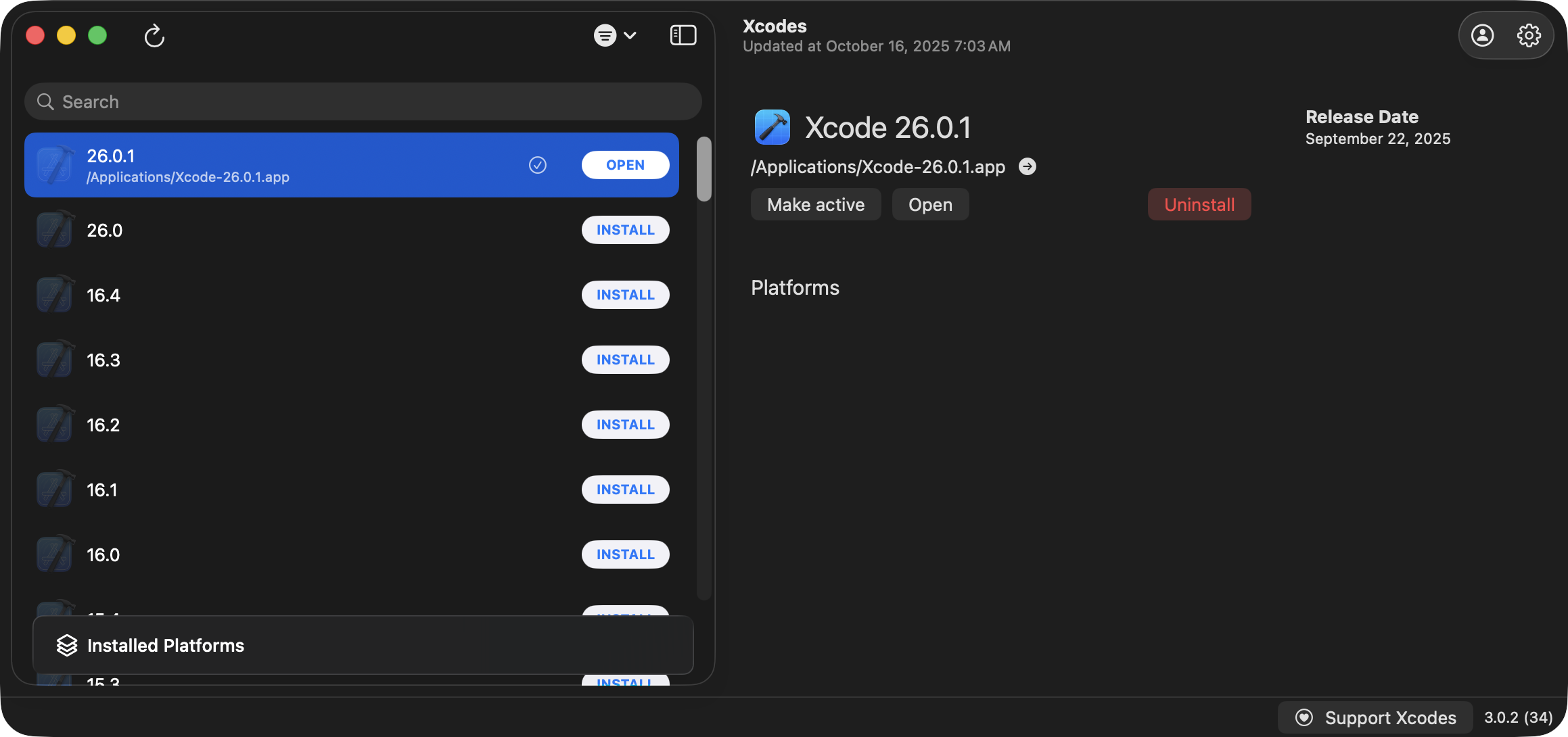
Press the Make active button so that Xcode 26.0.1 becomes the default version of Xcode – this means that when you double-click a .xcodeproj file, Xcode 26.0.1 is what will open:
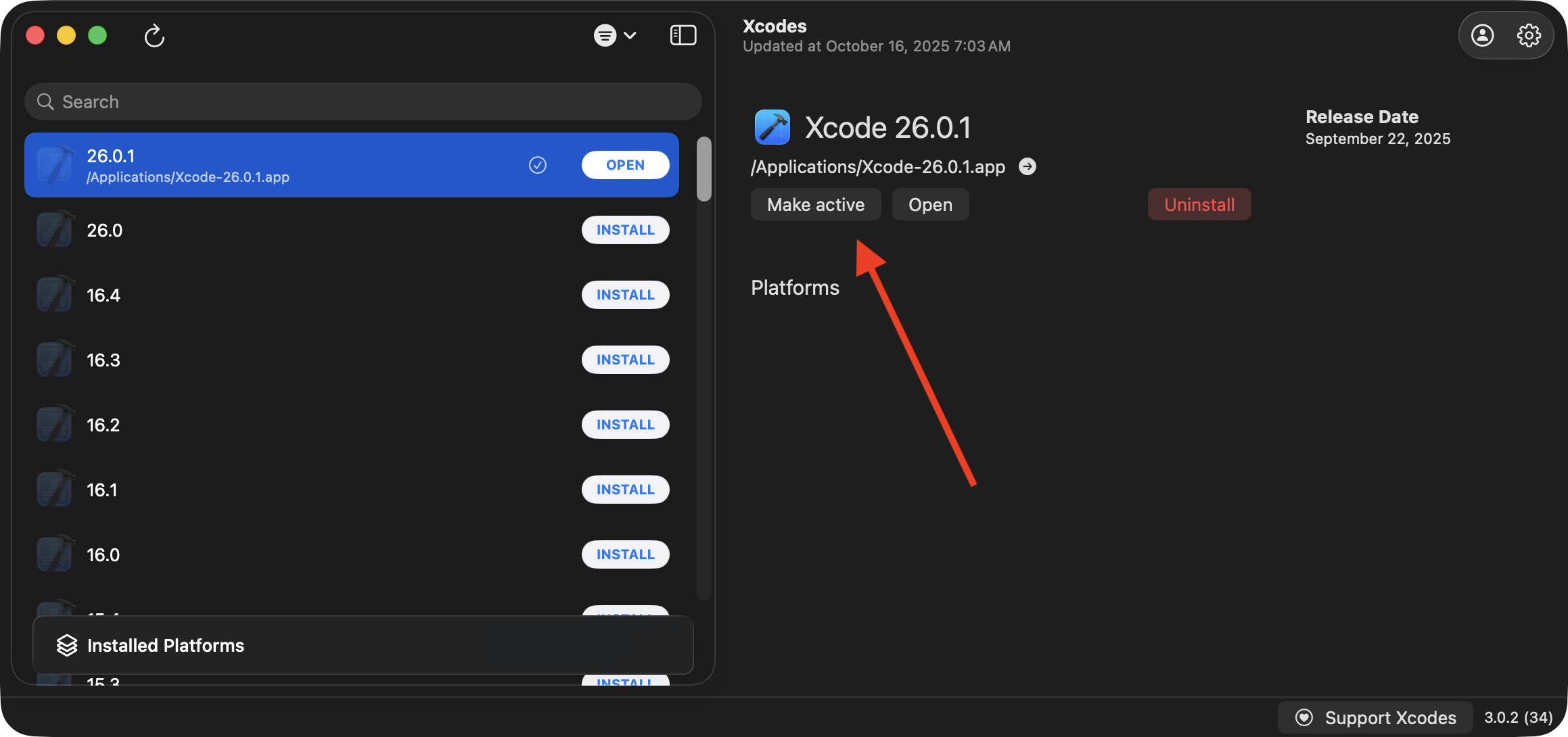
After pressing the Make active button, you will see a green checkmark beside Xcode 26.0.1:
IMPORTANT
You may also see an alert like this:
Matt Kiazyk is the developer of Xcodes – what is running in the background is the privileged helper tool we just installed a moment ago – that helper allows you to easily switch between active versions of Xcode without having to repeatedly type your account password to do so. That ability will be helpful later on this year when you may have multiple versions of Xcode on your computer.
You can dismiss the alert. You are now ready to open and use Xcode! 🚀