process that input somehow according to a set of rules or “business logic”
show output
Input to an app we write can come from:
users interacting with controls we provide (slider, stepper, text field)
a device (such as a microphone or camera)
an online data stream (such as a remote web server or database)
a file
As apps grow in size and complexity, software developers use design patterns to keep a project organized and easy to understand.
Employing a design pattern in this way is known as separating concerns.
Simply put – we try to avoid placing “all our eggs in one basket” – this means – we try to avoid writing all of our app’s code within one file in a project.
The MVVM design pattern
MVVM is a software design pattern and the acronym stands for Model-View-ViewModel.
Here is a visual summary of this design pattern:
flowchart TD

id1["<b>Model</b><br/>Describes data"] --> id2["<b>View Model</b><br/>Manages the state of data<br/>Contains business logic"]
id2 --> id3["<b>View(s)</b><br/>Presents data"]
id3 --> id2
id4[(Database)]
id4 --> id2
View
A view is anything the user sees within our apps or interacts with.
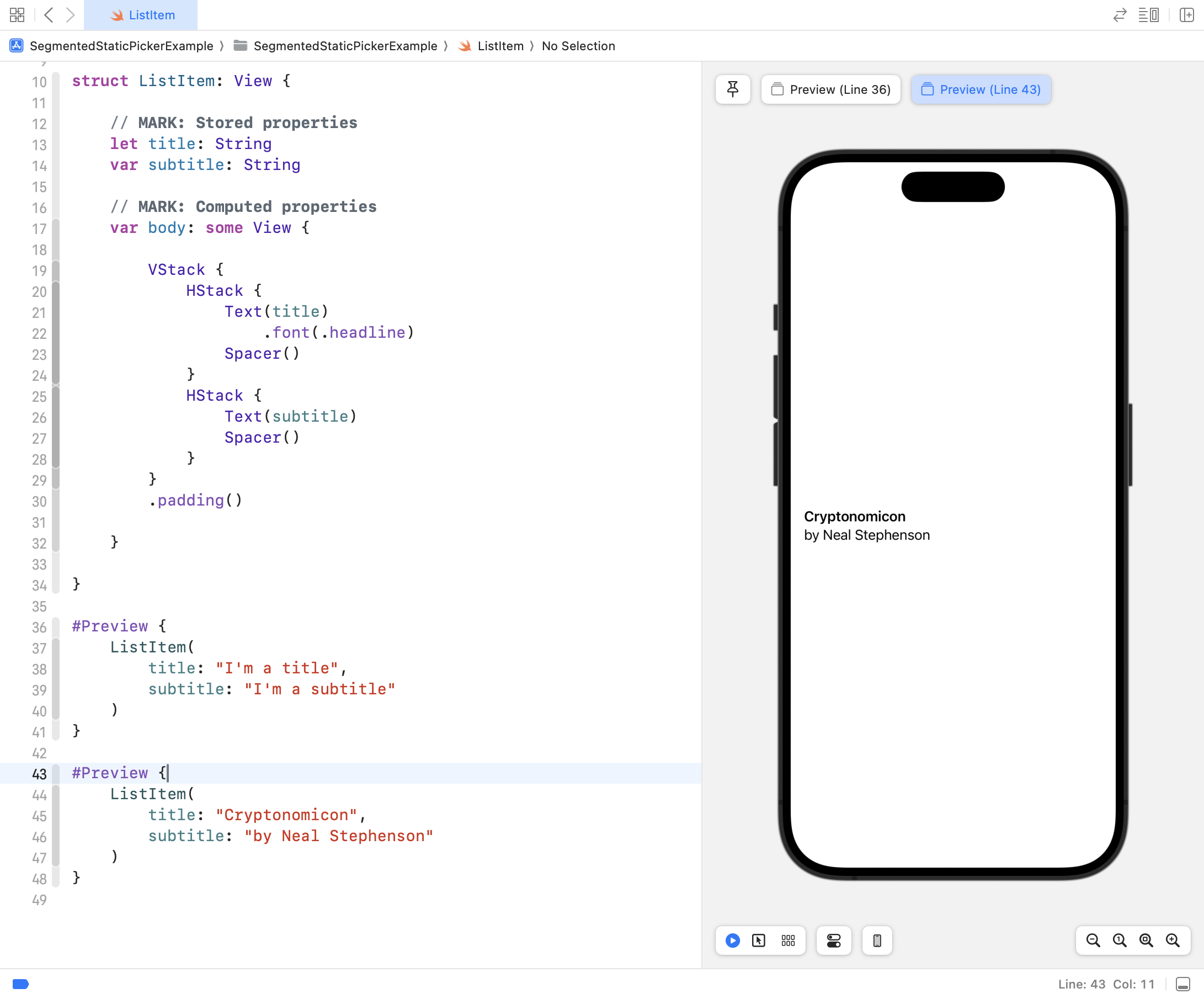
For example, consider this simple view – it is a structure designed to show a single item within a list – displaying a title and a subtitle:
You have already written many views while learning about layout and designing interfaces with SwiftUI. 🤩
Model
The model within an app describes the data our app will use – and keeps logic that is directly related to that data.
What does that mean?
Let’s look at an example – here is a model for a circle:
struct Circle { // MARK: Stored properties var radius: Double // MARK: Computed properties var diameter: Double { return 2 * radius } var perimeter: Double { return 2 * Double.pi * radius } var area: Double { return Double.pi * radius * radius }}
When we write a structure to serve as part of the model for our app, we consider:
What data it needs to store – these become stored properties.
What data it should offer – what useful information it could provide – these become computed properties .
You have already created many models when authoring Swift structures to describe shapes, hockey cards, book listings… 🚀
View Model
The view model is a concept that is new to you.
We will explore the role of a view model in this lesson.
The view model (as implied by its name) sits between the model code and the view code in an app.
A view model’s job is to store the current state of data within an app, and to encapsulate (contain) any business logic (processing rules) required to make the app perform its stated function.
Think of the view model as the “brain” of your app — it handles everything that isn’t directly about drawing the user interface. Here’s what a view model might do:
Managing data
Keep track of the current state of information in your app
Load data when the app starts up
Save data so it’s still there the next time the app is opened
Keeping data accurate
Check that user input makes sense before doing anything with it (for example, making sure an email address contains an ”@” symbol)
Take raw data and organize or transform it into a form that’s useful for the view to display (for example, sorting a list alphabetically, or filtering out items that don’t match a search)
Talking to the outside world
Fetch data from a remote database or web service
Send new or updated data back to a remote database
Receive information in JSON format from an API and convert it into structures your app can work with
Keeping the view informed
Track whether data is currently loading, so the view can show a spinner
Hold onto any error messages so the view can display them to the user
The key idea is this: your view should just display information and respond to user actions — it shouldn’t have to think.
The view model does the thinking, and the view reacts to whatever the view model tells it.
NOTE
In larger, professional apps, some of these responsibilities might be split into separate layers — for example, a dedicated networking helper or a storage manager.
However, putting these responsibilities all in the view model is a reasonable approach for a beginning programmer like yourself.
Apply within a context
Let’s now apply this concept and re-write an app that you made earlier in the Revisiting Interactive Apps exercise.
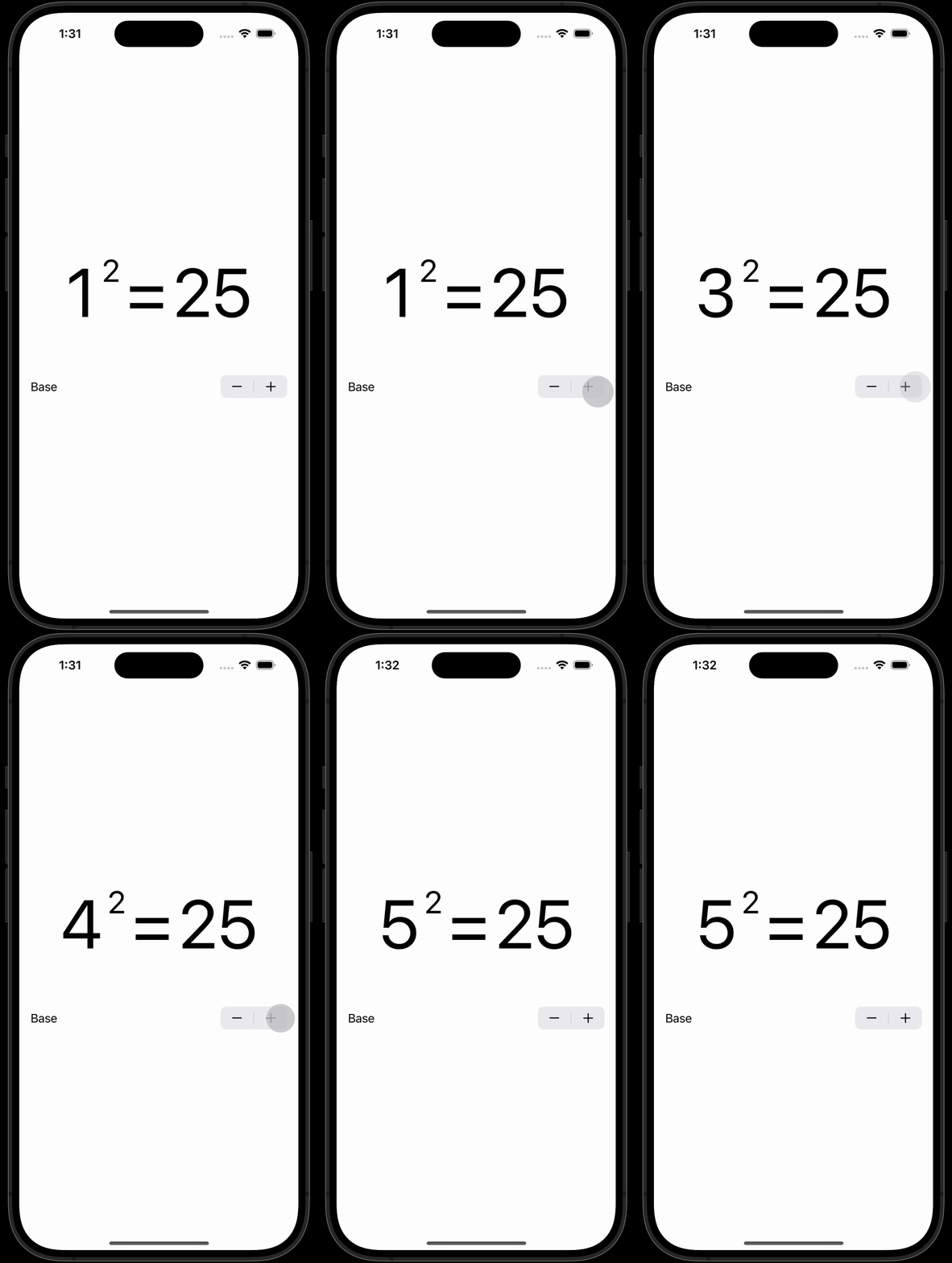
In that exercise, you wrote the following app:
Of course, we were just learning, but… the app’s interface leaves a lot to be desired.
If a user wanted to find the square of even a slightly larger number (say, 42) then they must repeatedly tap the stepper control.
This is very tedious.
As well, all of the logic for that app was kept within the view:
Input was collected through the Stepper control and saved in stored property
Output is calculated (via a computed property)
The result is shown (via a Text control within the body property)
… like this:
struct ContentView: View { // MARK: Stored properties @State var base: Int = 1 // MARK: Computed properties var squared: Int { return base * base } var body: some View { VStack { Spacer() HStack(alignment: .top) { Text("\(base)") .font(.system(size: 96)) Text("2") .font(.system(size: 44)) Text("=") .font(.system(size: 96)) Text("\(squared)") .font(.system(size: 96)) } Stepper(value: $base, label: { Text("Base") }) Spacer() } .padding() }}#Preview { ContentView()}
Although the total lines of code are not that high, it is still considered bad practice to keep all of the logic for an app within a single file.
What the app were re-written to work as follows instead?
In this version of the app, the user can type whatever they want into the text fields.
An answer, or an appropriate error message, is shown to the user.
The user can save calculations made to refer to later on.
If we apply the MVVM design pattern, here are the specific roles each layer will play in the re-designed app:
Layer
Role
Model
Hold the base and exponent in numeric form; provide the result of evaluating the power.
View Model
Hold the text provided by the user for the base and exponent; provide an instance of the model – the power – where possible, otherwise, provide an appropriate error message. As well, hold an array that contains a list of previous calculations performed.
View
Collect input from the user and display whatever output is provided by the view model.
Get started
Obtain the code
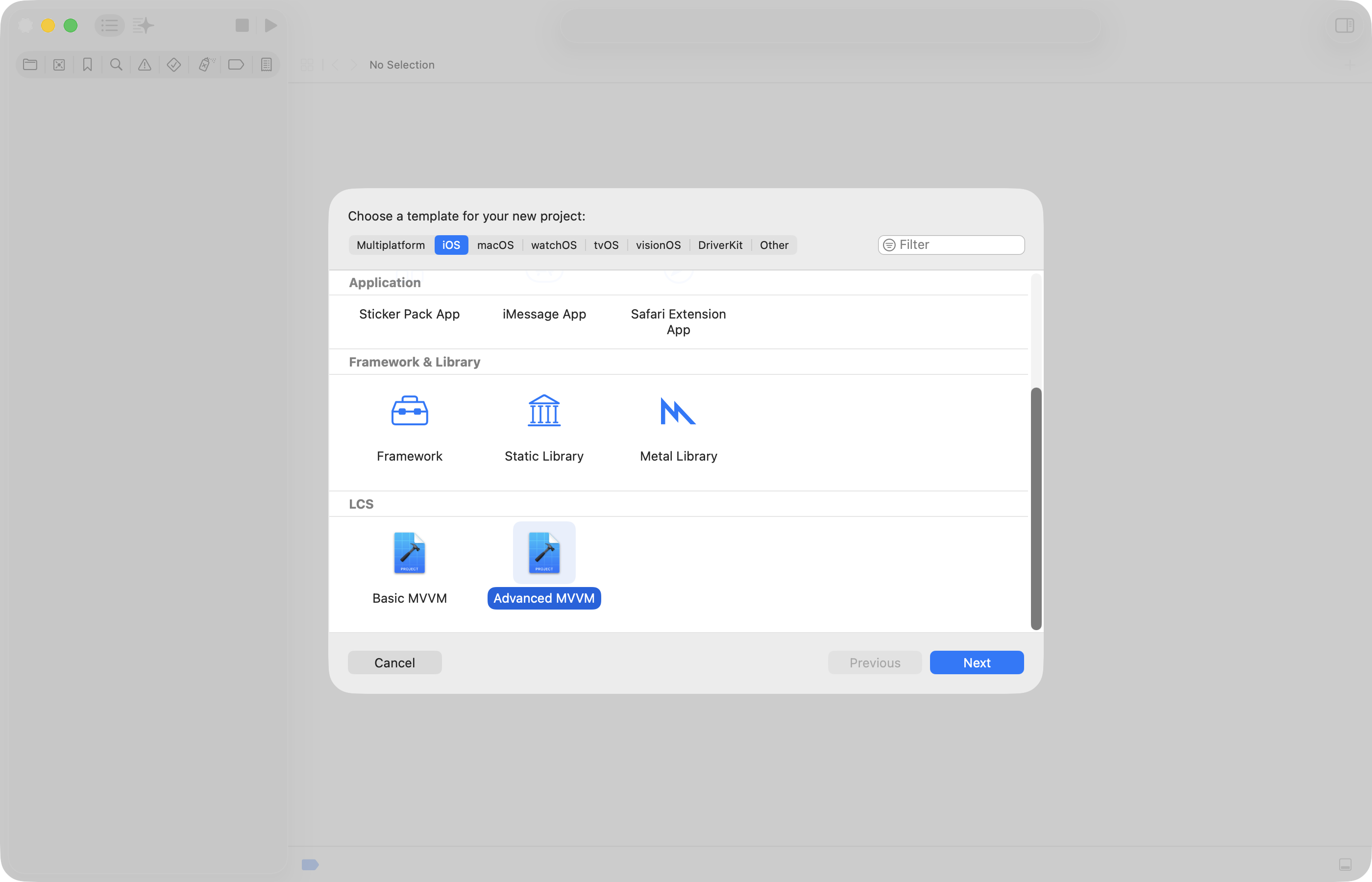
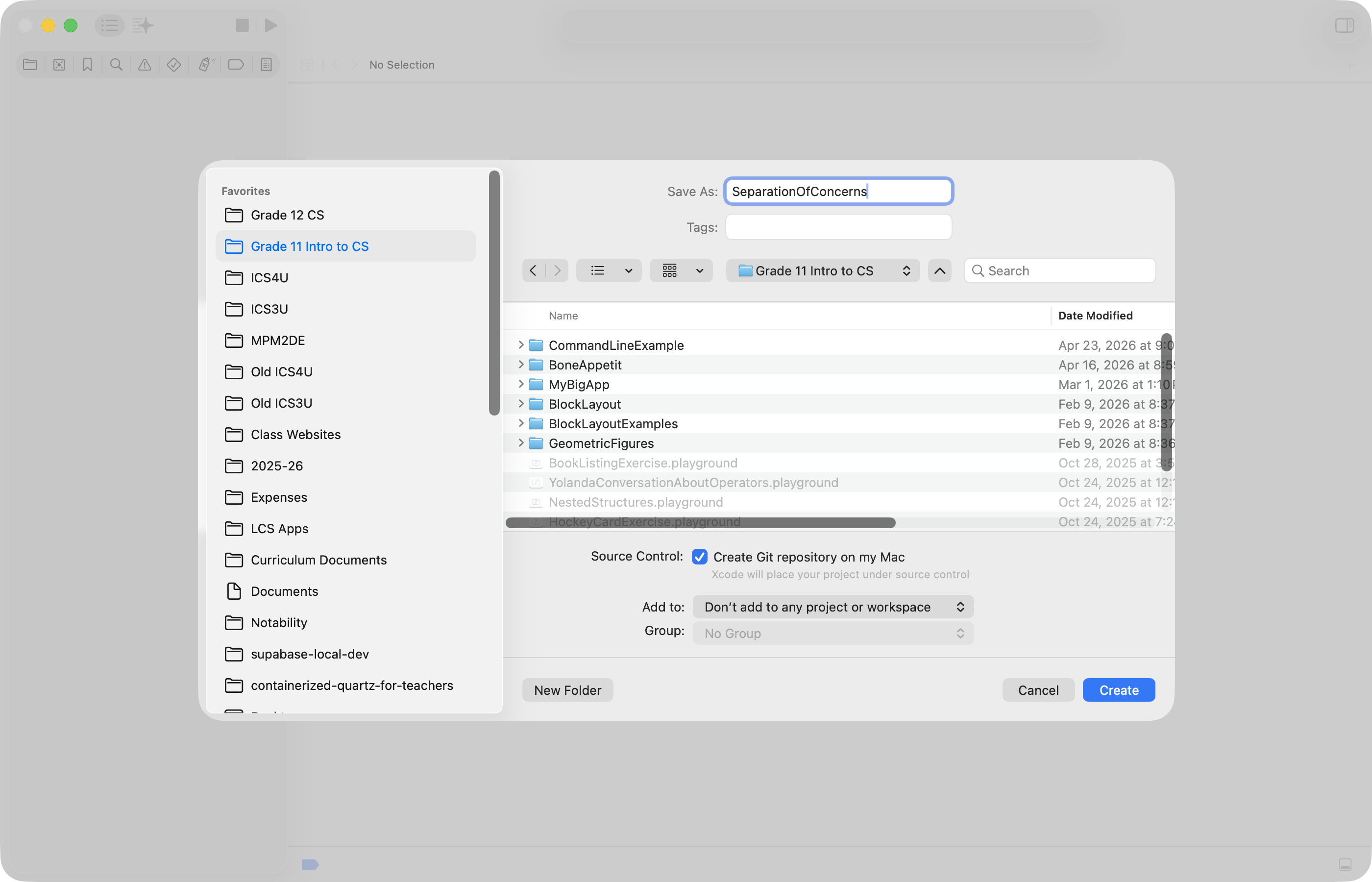
If you have installed the new Xcode project templates, please now use the Advanced MVVM template to create a project named SeparationOfConcerns, like this:
… and:
… resulting in:
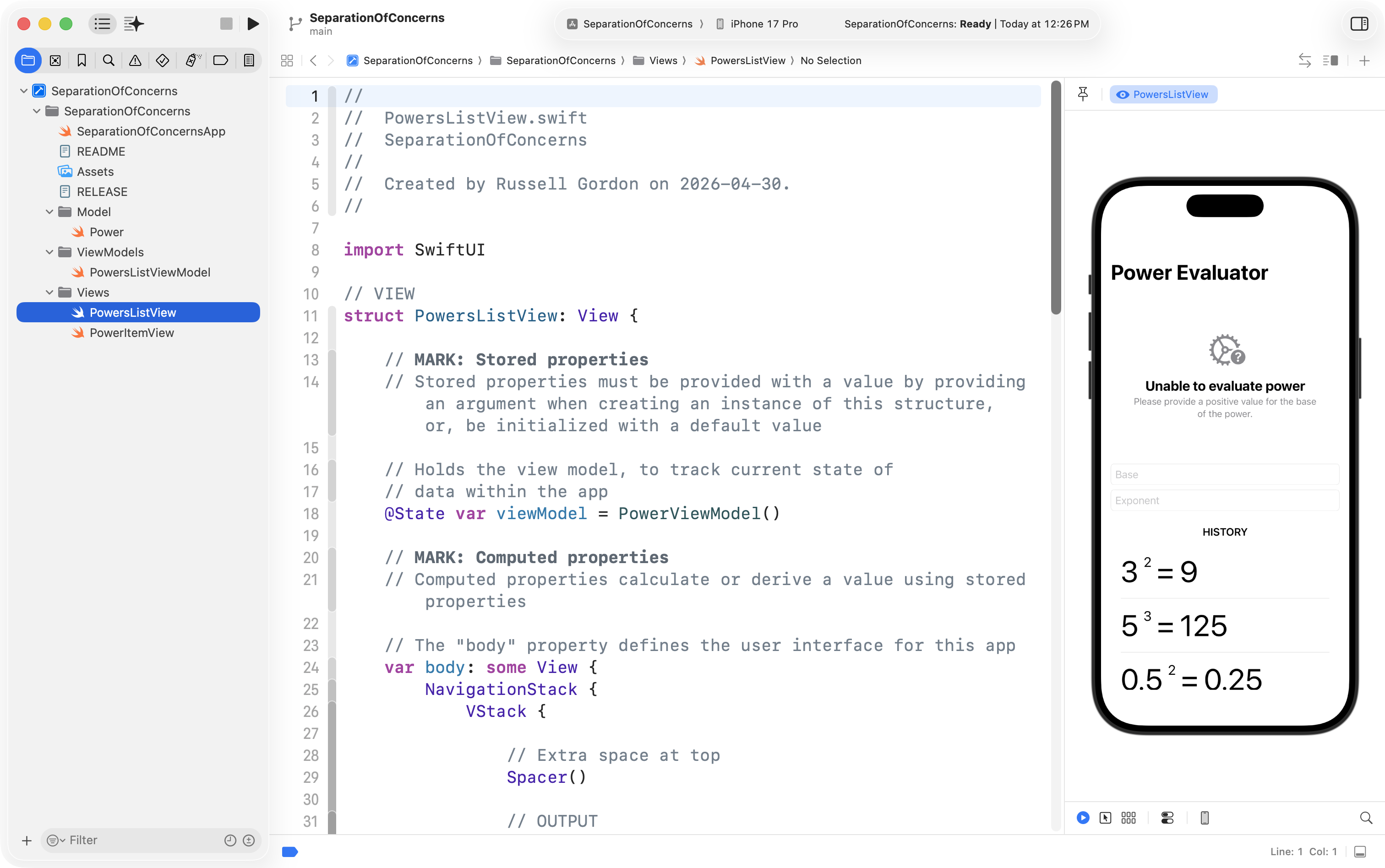
Try out the app
Take a moment to thoroughly try out the app. What do you notice about how it works?
Consider the code
In the exercises further below, you’ll make changes to the provided starter code to improve the app experience for users.
Before doing so, take some time here to really consider the code in this complete example of applying the MVVM design pattern.
By trying to answer the prompts below (and then checking your work by expanding the answer to each question) you will deepen your understanding of how to organize a complete app using MVVM.
TIP
It is recommended that you try responding to these questions with a peer in class.
The Model (Power.swift)
Find the two stored properties in the Power structure. What data types are they? Why might those data types have been chosen?
ANSWER
The two stored properties are base and exponent. These are a Double and an Int respectively.
The first property, the base of a power, may include parts of a whole, for example, 0.5. The second property represents the exponent for the power, which is how many times the base is multiplied by itself, and this must be an integer. Why? A number cannot be multiplied by itself, say, two and a half times – but it can be multiplied by itself twice, three times, and so on.
Look at the result computed property. In your own words, describe what the loop is doing. Could this have been written as a stored property instead? Why or why not?
ANSWER
The loop is accumulating the evaluated value of the power. Consider a power with a base of five and an exponent of three. On the first iteration of the loop, solution is 5. On the second iteration of the loop, solution is 25. On the third, solution is 125.
This could not be written as a stored property, because that would require the user to provide input for the solution. The purpose of the app is to take a base and an exponent as input and provide the evaluated power as the output – that is – the solution.
Why does the model have no idea that a user interface exists? What would be wrong with putting a TextField inside the model?
ANSWER
The Power structure only imports Foundation — it has no knowledge of SwiftUI or any user interface. This is intentional.
If UI code like a TextField were placed inside the model, the model would become tightly coupled to one specific interface. It could no longer be reused in other contexts — for example, in a command-line tool, on watchOS, or in automated tests. It would also become much harder to read and maintain, because data logic and interface logic would be mixed together in the same place.
The View Model (PowersListViewModel.swift)
Find the line var power: Power?. Why is this a computed property rather than a stored property? What does the ? tell you?
ANSWER
power is a computed property because its value depends onprovidedBase and providedExponent. Every time either of those stored properties changes, power needs to be recalculated. If it were a stored property, it would need to be manually updated every time either input changed — defeating the purpose of this app.
The ? indicates that power is optional — it can be nil. When the user’s input is invalid or missing, there is no meaningful power to return, so nil is the appropriate value. The view can then check whether a valid power exists before trying to display it.
Trace what happens when a user types "abc" into the base field. Which line of code catches that problem, and what happens as a result?
ANSWER
The first guard statement attempts to convert providedBase to a Double using Double(providedBase). When the input is "abc", this conversion fails and returns nil, so the guard condition is not met.
As a result, recoverySuggestion is set to "Please provide a positive value for the base of the power.", and the computed property immediately returns nil. The view detects that power is nil and shows ContentUnavailableView with that recovery suggestion as its description.
The powersList property is marked private(set). What do you think that means, and why might that be a good idea?
ANSWER
private(set) means the property can be read from outside the view model, but can only be modified from within it. A view can display the contents of powersList, but cannot directly add to it or remove from it.
This is a good idea because it keeps all logic for changing the list centralized inside the view model. If a view could directly mutate powersList, there would be nothing stopping business logic from creeping into the view layer — making the app harder to understand and debug.
The save() function uses insert(_:at:) rather than append(). What difference does that make in the list, and why might that be preferable?
ANSWER
insert(_:at: 0) adds the new power at position zero — the beginning of the array — so the most recently saved item always appears at the top of the history list. append() would add to the end, meaning the oldest items would appear first. For a “history” feature, showing the most recent item at the top is more intuitive and matches the behaviour users expect from lists like a call history or a search history.
Notice that the view model validates input and holds the list of saved powers. Based on what you’ve read about the role of a view model, does it make sense for both of those responsibilities to live here?
ANSWER
Yes. Both responsibilities belong in the view model.
Validating input is business logic — it enforces rules about what data is acceptable. Managing the list of saved powers is state management — it tracks what the app currently knows. Neither belongs in the view (which should only display information and respond to user actions), and neither belongs in the model (which only defines the shape of the data). The view model is exactly the right place for both.
The View (PowersListView.swift and PowerItemView.swift)
Find the if let power = viewModel.power block. What are the two possible outcomes, and what does the view show in each case?
ANSWER
If viewModel.power successfully unwraps — meaning the user has provided valid input — the view shows PowerItemView displaying the evaluated power, along with a Save button.
If viewModel.power is nil — meaning the input is missing or invalid — the view shows ContentUnavailableView with an appropriate recovery suggestion message sourced from viewModel.recoverySuggestion.
The Save button calls viewModel.save(power). Notice the view doesn’t directly modify powersList itself — it asks the view model to do it. Why is that distinction important?
ANSWER
Asking the view model to perform the save, rather than modifying powersList directly, keeps the view’s role limited to what it should be: responding to user actions and passing them along to the appropriate layer.
If views were allowed to directly modify data, logic for how saves work could end up scattered across the user interface, making it harder to find bugs and harder to change behaviour later. Because powersList is private(set), the view actually cannot modify it directly — the only path is through the view model’s save() function.
PowerItemView takes a Power directly as a parameter. Does PowerItemView know anything about the view model? Should it? Why or why not?
ANSWER
PowerItemView has no reference to the view model at all — it only receives a single Power instance. This is intentional.
The custom subview’s only responsibility is displaying one power in a formatted way. By keeping it independent of the view model, it becomes reusable anywhere in the app where a Power needs to be shown. If it depended on the view model, it would be harder to reuse and harder to preview in isolation — as the #Preview at the bottom of the file demonstrates.
Look at the scaleFactor parameter in PowerItemView. Why might it be useful to have the same subview handle both the “current result” display (larger) and the history list (smaller)?
ANSWER
By accepting a scaleFactor parameter, PowerItemView can render at different sizes without any duplication of code. The “current result” area uses scaleFactor: 1.5 for a larger, more prominent display; the history list uses scaleFactor: 1.0 for a more compact appearance.
This follows the principle of writing code once and reusing it. If the layout of a power ever needed to change, there would be only one place to update it — not two separate views with subtly different implementations that might drift out of sync.
Connecting the Layers
When you type a new value into the Base field, several things update automatically — without any button press. Trace the chain of events: what changes, what reacts, and why?
ANSWER
Typing in the Base field updates viewModel.providedBase. Because PowerViewModel is marked @Observable, SwiftUI is automatically tracking which properties the view depends on. When providedBase changes, SwiftUI knows to re-evaluate the view’s body.
As part of that re-evaluation, the power computed property is recalculated using the new value of providedBase. If the new input is valid, the result display updates to show the new power. If it is not, the ContentUnavailableView appears with the appropriate recovery suggestion.
If you wanted to add a Clear History button, which layer would the new function belong in, and which layer would contain the button itself?
ANSWER
The function — something like clearHistory() — would belong in the view model, since it modifies powersList, which is owned and managed there. The function might look like:
func clearHistory() { powersList = []}
The button itself would belong in the view, calling viewModel.clearHistory() in its action. The view decides when to clear; the view model decides how.
If Power were a class instead of a struct, what might behave differently?
HINT: think about what happens when you save() a power and then keep typing.
ANSWER
Structures in Swift are value types — recall the Structures vs. Classes lesson. When you save a Power, a complete, independent copy is added to the list. Continuing to type in the fields has no effect on the saved copy.
Classes are reference types — if Power were a class, saving it would add a reference to the same object to the list. Continuing to type could then modify the same object that was saved, causing the history list to change unexpectedly. Using a struct ensures that each entry in the history list is a stable snapshot of the power at the moment it was saved.
Exercises
Now, try extending the app in the following ways.
Handle zero exponents
When a zero exponent is provided, the app currently returns an error message.
Make changes first to the model, then to the view model, to support the evaluation of powers with an exponent of 0.
HINT
From math class, recall that any power with an exponent of 0 has a result of 1.
You may need to make use of selection statements, such as if or switch.
TIP
Try modifying the model, and then the view model, first within the playground you set up earlier. Once you have the code there working correctly, move it into your project.
Handle a negative base
When a negative base is provided, the app currently returns an error message.
Make changes first to the view model, then to the view, to support the evaluation of powers with a negative base.
Ensure that the view properly represents the base when it is negative.
For example, it is correct to show this:
(−5)2=25
It is not correct to show this:
−52=25
… since the base in the power −52 is 5 and not −5.
NOTE
When the base is positive, there should be no brackets around it.
For example:
32=9
Do not present the result like this:
(3)2=9
Handle negative exponents
When a negative exponent is provided, the app currently returns an error message.
Make changes first to the model, then to the view model, and finally to the view, to support the evaluation of powers with negative exponents.
TIP
When the user provides a negative exponent, express the result as a fraction.