A bit is a single piece of information – literally a 1 or a 0.
As we just learned, we can use the abstraction of the base 2 number system to represent numbers in base 10.
Four bits can represent a minimum of zero:
Value expressed as a power
23
22
21
20
Value expressed in standard form
8
4
2
1
0
0
0
0
=8×0+4×0+2×0+1×0=0+0+0+0=0
So, 00002=010
Four bits can represent a maximum of fifteen:
Value expressed as a power
23
22
21
20
Value expressed in standard form
8
4
2
1
1
1
1
1
=8×1+4×1+2×1+1×1=8+4+2+1=15
So, 11112=1510
Variables, Constants, Data Types
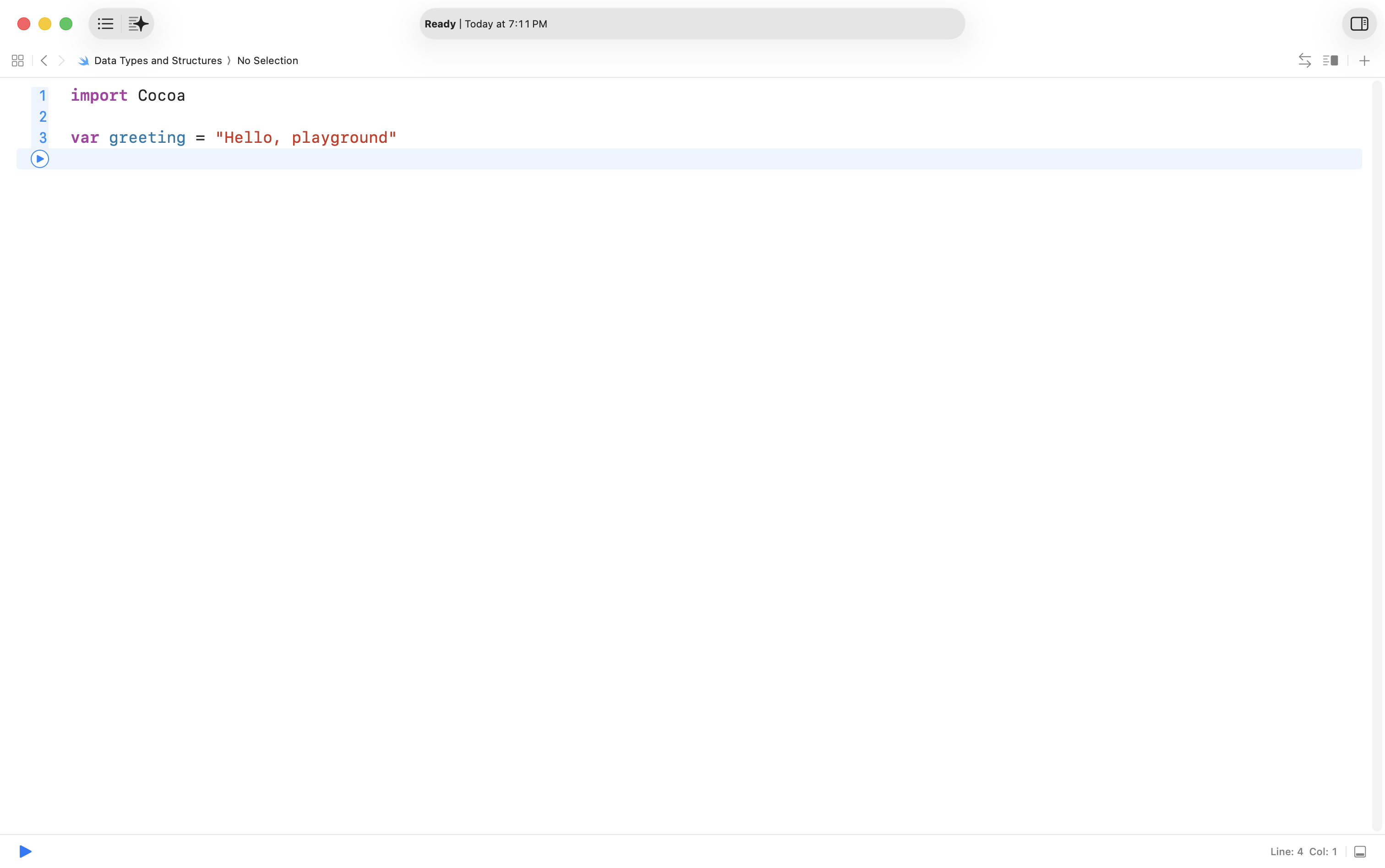
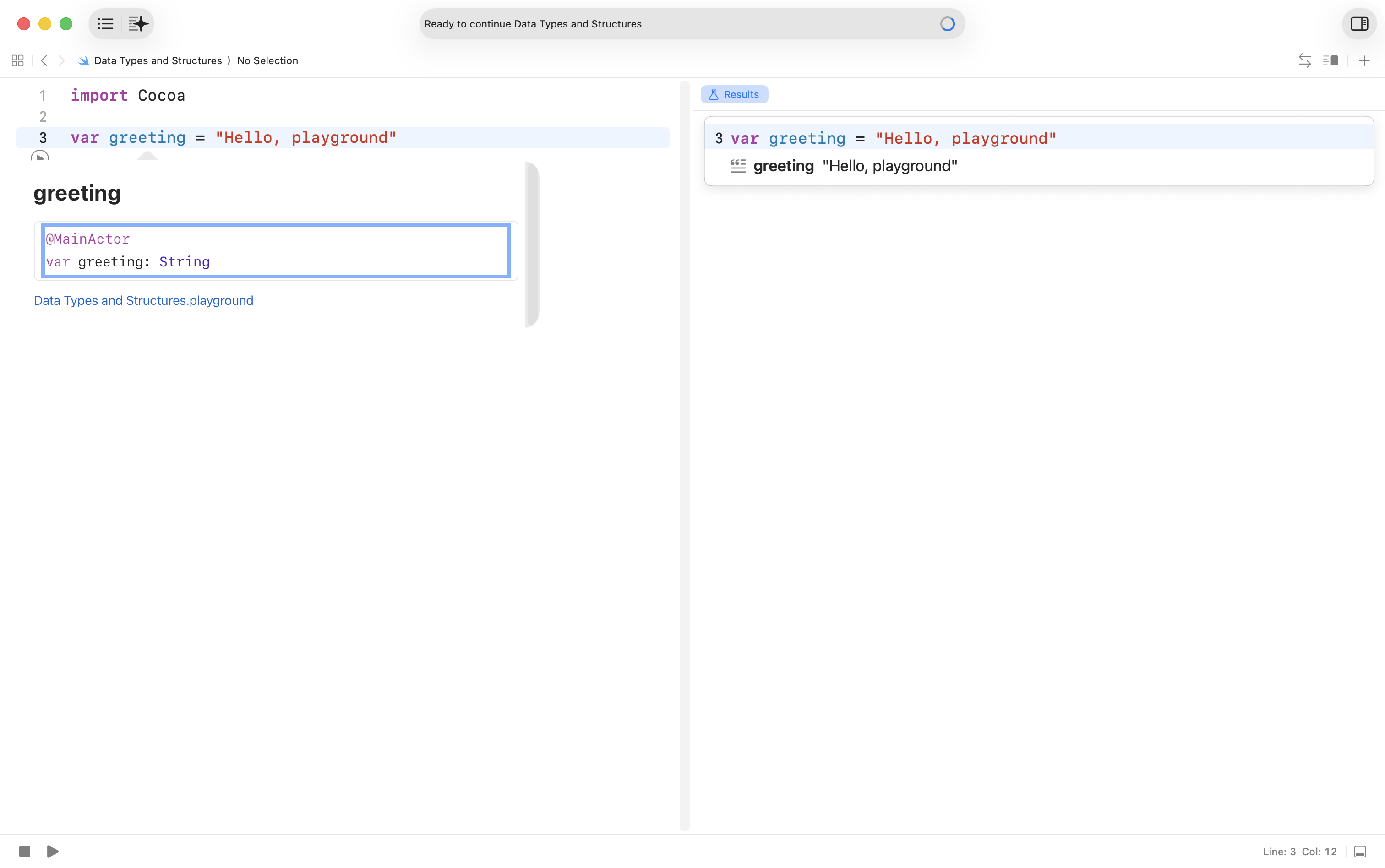
In your playground, the default code provided is:
NOTE
Cocoa is a macOS framework provides basic functionality for apps written to run on the Mac.
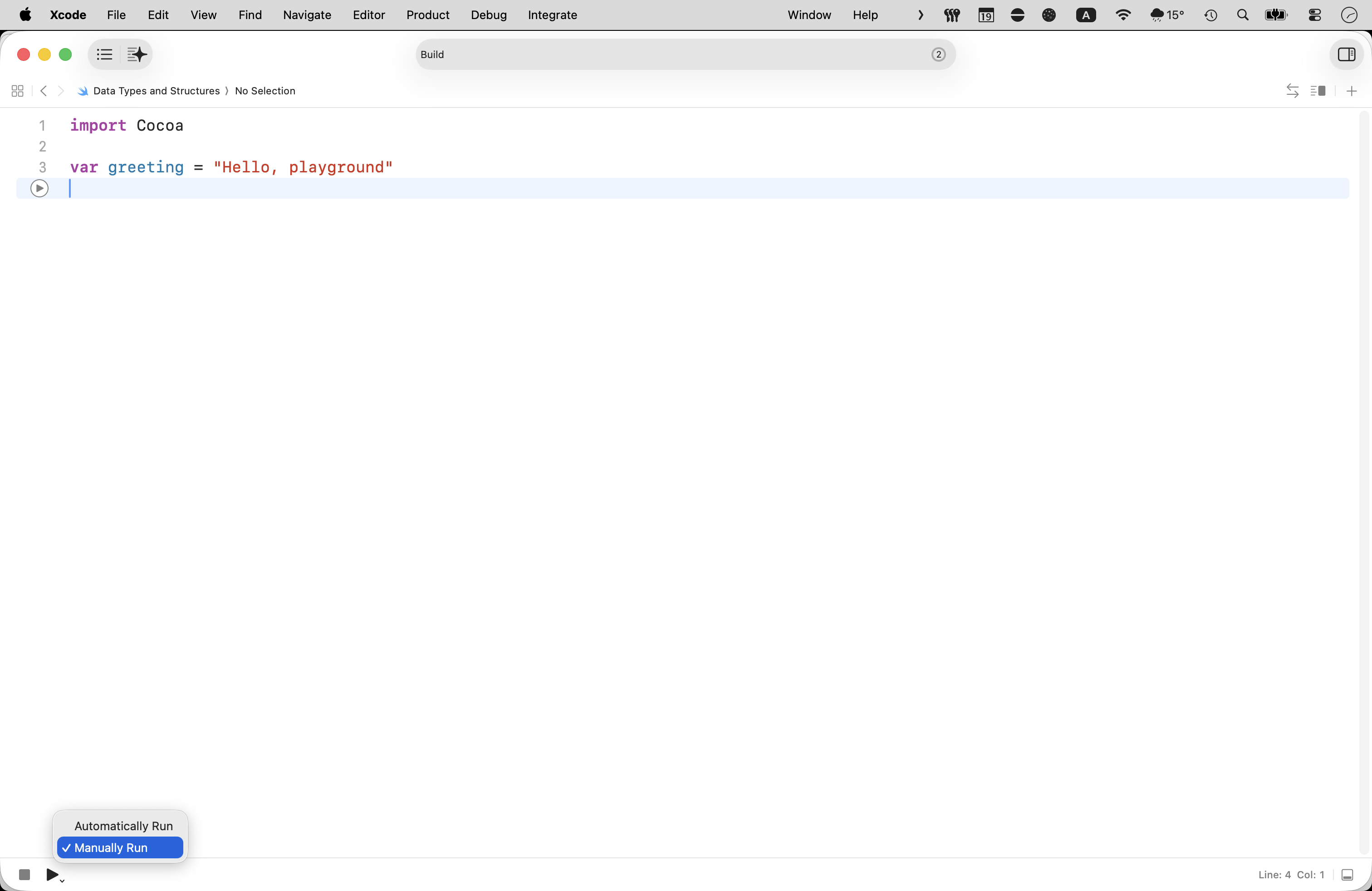
Xcode will attempt to run code in your playground immediately, as you type it – this can often be bothersome – so, long press on the ▶ button in the bottom left corner and then choose Manually Run:
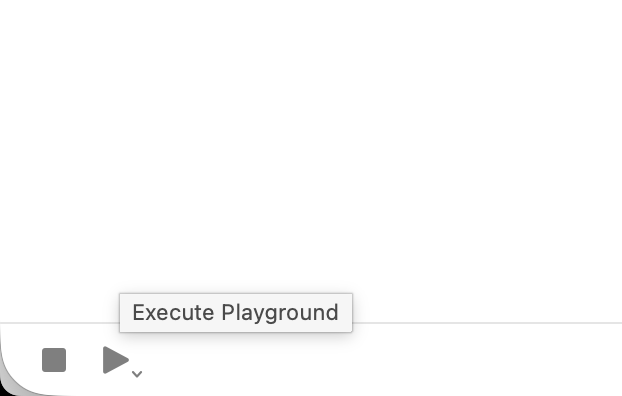
Then actually run your playground by clicking the ▶ button, or by pressing Command-Shift-Return on your keyboard:
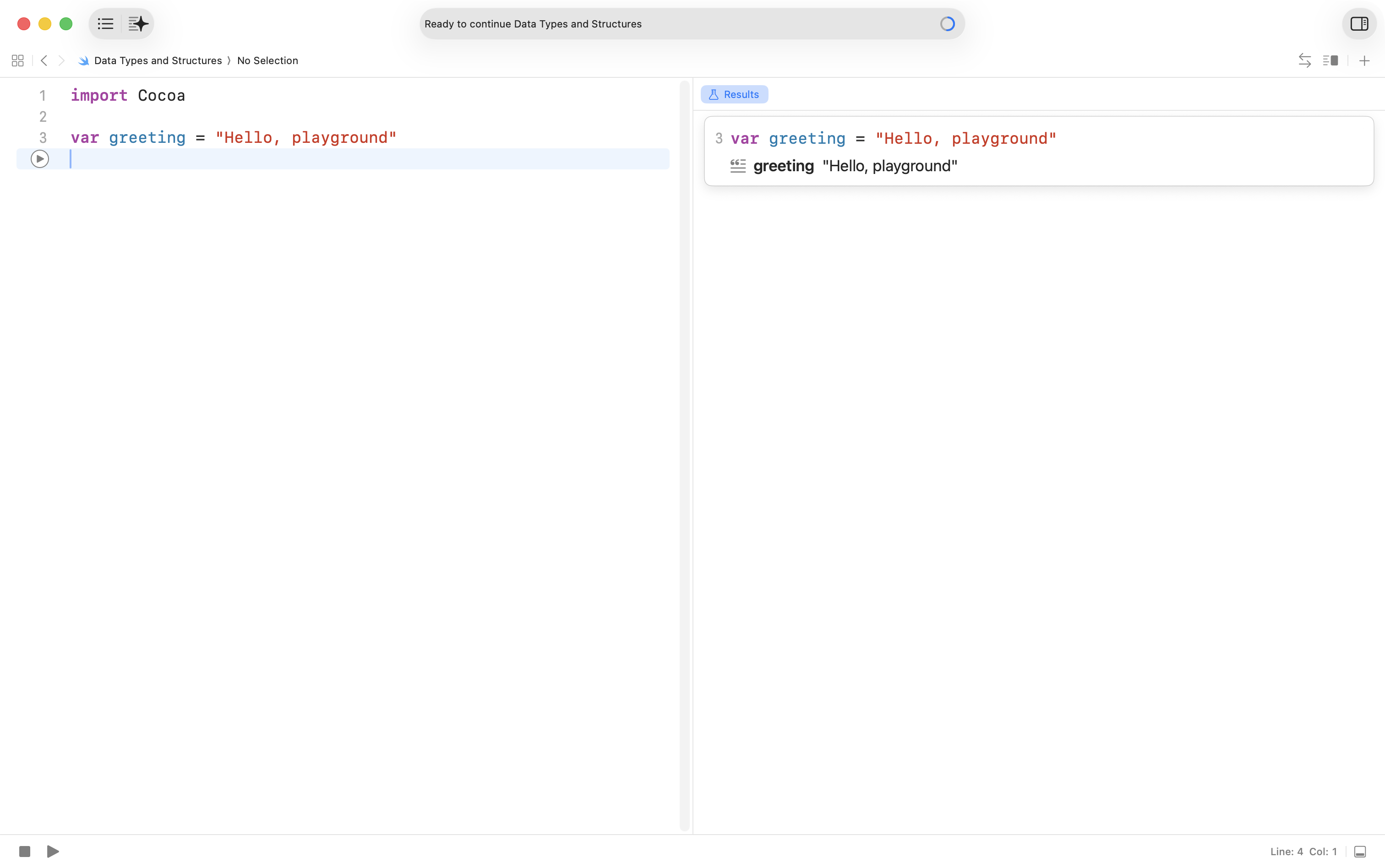
After a few seconds – note that it takes a bit longer the first time you run a playground – you will see results appear in the sidebar:
This code creates a variable named greeting.
A variable can hold a single value at a time.
The variable named greeting holds the value Hello, playground.
Now hold down the Option key on your keyboard.
Position your cursor over the greeting text.
You will see a question mark appear.
Click the trackpad or your mouse button.
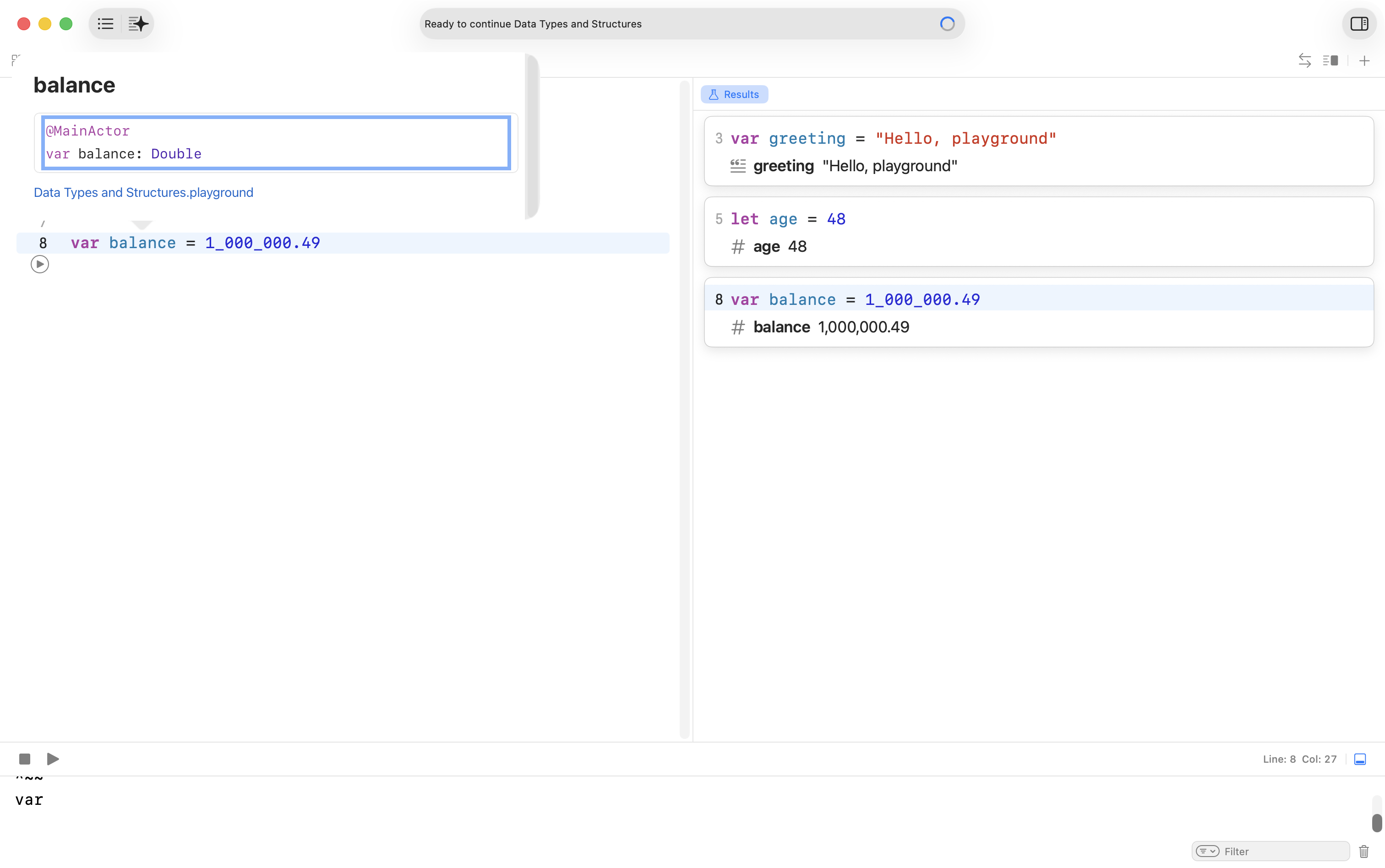
The Swift compiler that is part of Xcode will guess that the data type of the greeting variable is a String:
NOTE
When Swift’s compiler “guesses” a data type, we call that type inference.
A string is a programming term for a data type that holds text.
In Swift, strings are always surrounded by quotes – they must begin and end with a ".
TIP
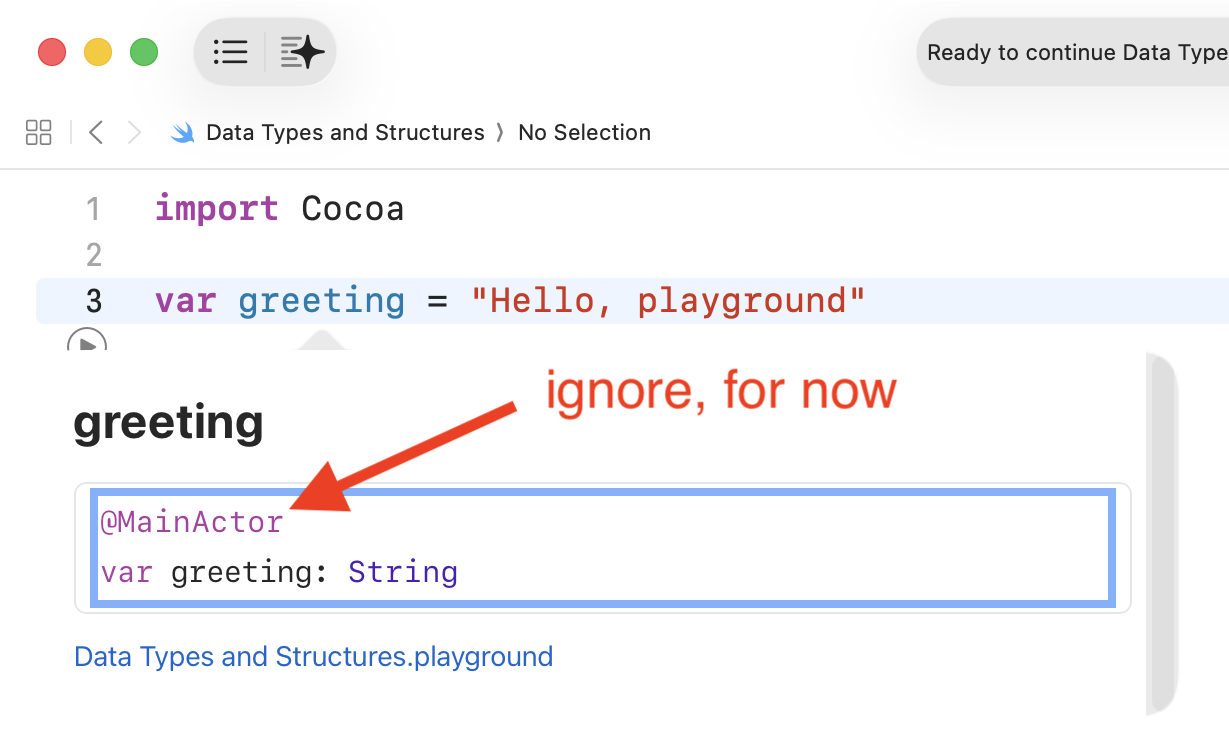
Later this year, you will learn what the text @MainActor means.
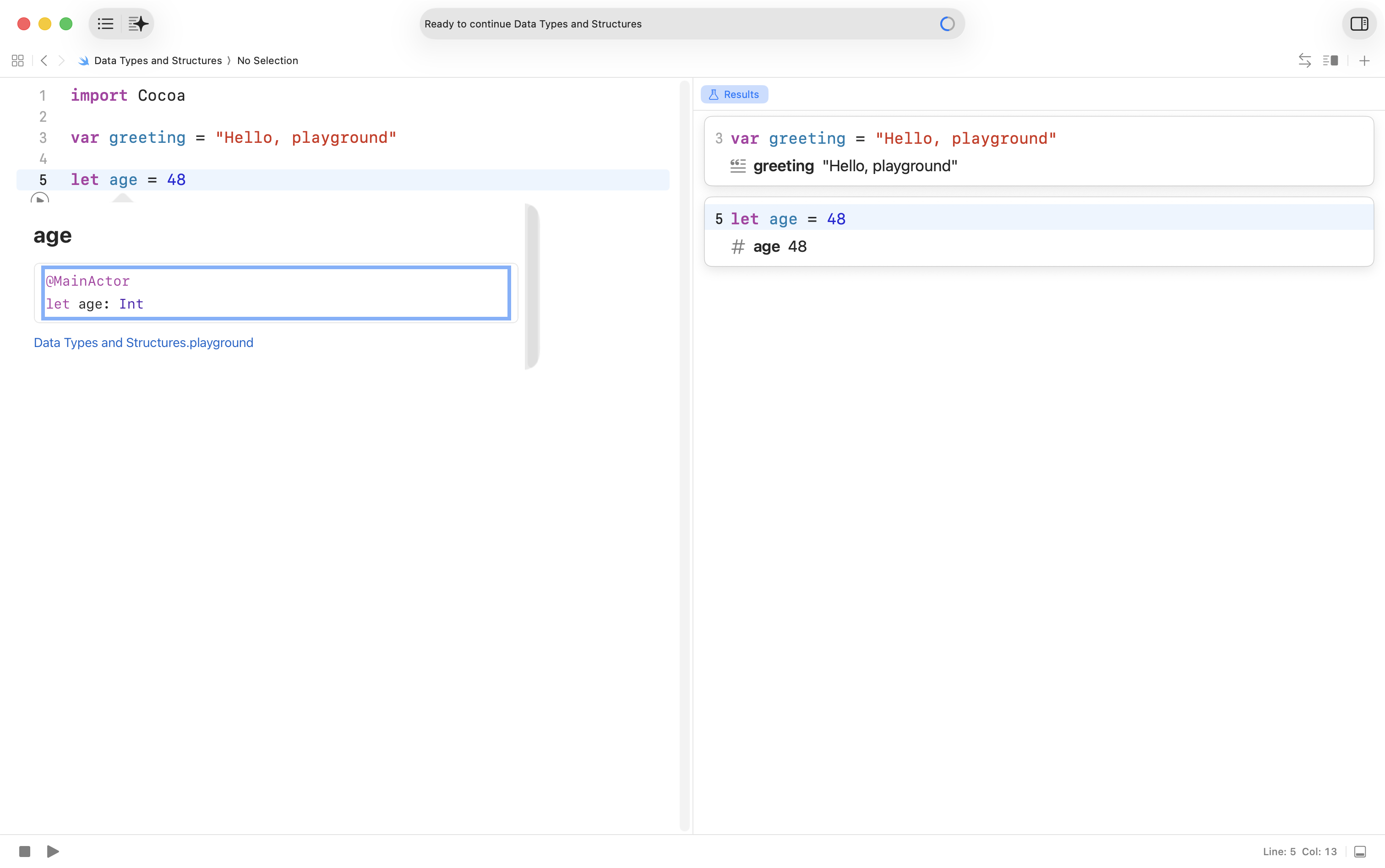
Add the following code to your playground to express your age – Mr. Gordon’s age will be a little greater than yours:
let age = 48
Run the program. This creates a constant named age.
Option-click the age constant.
Swift reports the data type as an integer, or Int:
Make a brief note for yourself, based on what you have experimented with in this exercise.
What is a variable?
What is a constant?
What are the three main data types that we will use, for now, in programs that we write?
For each data type, write out two examples of information that could be stored
Easter egg, of sorts
Mr. Gordon has mixed feelings about user interfaces that reveal information only when the mouse cursor is in a certain position.
Using this clue, can you find another way to determine the data type of a variable or constant created in an Xcode playground?
Exercises
TIP
Complete these exercises in the same playground file that you were working with above.
When you are done, share your code in your portfolio using a screenshot or by typing /code to create a code block – then you can copy and paste the code directly in to your portfolio post.
Create a value that holds the name of a course you’re taking. Decide whether it should be a variable or constant, add a short comment explaining your choice, then Option-click the name to confirm the inferred type.
Create a value for the outside temperature right now. Decide variable or constant, add a brief comment, then Option-click to check the inferred type.
Create a value that stores a short status message you might post to classmates in a chat app. Should it be a variable or a constant? Option-click to see the data type Swift infers.
Create a value for the number of steps you have taken so far today (make an estimate). Add a one-line comment about your data type choice. Option-click to verify the data type that Swift inferred.
Create a value for the price of a snack at the school store. Explain your variable or constant choice, then Option-click to confirm the type.
Create a value for a room label you might use in a school map (letters and numbers together). What data type makes sense? Make a comment to explain why you chose variable or constant, then Option-click to check the type.
Create a value for the count of seats in a classroom you’ve been in. Add a short comment justifying variable or constant, then Option-click to confirm the type.
Create a value for your computer’s screen size in inches. Comment on your choice and Option-click to verify what Swift inferred.
Create a value for our school’s name. Add a brief comment about whether it should, or could, change during the program, then Option-click to see the inferred type.
Create a value for the number of books you hope to read before the year is over. Add a one-line comment about variable or constant, then Option-click to check the type.
Create a value for a distance you walk between your house and the Academic Block here on campus. Explain your variable or constant choice and Option-click to verify the type.
Create a value for a jersey number you like. Add a comment about your choice and Option-click to confirm what Swift inferred.
Create a value for a battery level one of your devices might report. Comment on whether it should be a variable or constant, then Option-click to check the type.
Pick a large number from any real-world context (e.g., a population or follower count). Write it using digit underscores for readability. Add a short comment explaining why the underscores help, then Option-click to confirm the type.
Create a value for a classroom item’s label (something you could put on a storage bin). Add a brief comment about your choice and Option-click to verify the type.
Review all of your values. Mark three that make sense as constants in real life and add a short comment to each explaining why. Mark three that make sense as variables in real life and add a short comment to each explaining when or why they might change.
Partial solutions
Here are a set of solutions to the even-numbered exercises above. These are just one possible set of answers. Please review, comparing these to your own work. Ask questions of Mr. Gordon through your portfolio on Notion using @Russell Gordon as needed. You will see questions like these on Monday’s mini-test. Note that the mini-test on Monday will be written on paper – no computers or other reference material permitted.
SOLUTIONS
Here are solutions to every other exercise above:
// 2) Outside temperature right now// Variable: the temperature changes throughout the day.var outsideTemperatureC = 12.3 // Option-click to see inferred type (Double)// 4) Number of steps taken so far today// Variable: this value increases as you walk.var stepsToday = 4_567 // Option-click to see inferred type (Int)// 6) Room label for a school map (letters + numbers)// Constant: a room's label/identifier does not change during program execution.let roomLabel = "Room 6" // Option-click to see inferred type (String)// 8) Computer screen size in inches// Constant: the physical screen size is fixed.let screenSizeInches = 14.2 // Option-click to see inferred type (Double)// 10) Number of books you hope to read before the year is over// Variable: goals can change as plans evolve.var booksToRead = 5 // Option-click to see inferred type (Int)// 12) Jersey number you like// Constant: your preferred number is not expected to change in this program.let favoriteJerseyNumber = 11 // Option-click to see inferred type (Int)// 14) A large real-world number using digit underscores for readability// Constant: this example value is a fixed snapshot. Underscores improve legibility.// Example: an approximate population-style numberlet exampleLargeNumber = 40_528_000 // Option-click to see inferred type (Int)// 16) Review of choices from the values above:// Mark three that make sense as constants in real life, and three as variables.// CONSTANTS (why):// - roomLabel: room identifiers are fixed in a building.// - screenSizeInches: physical size of a device's screen does not change.// - favoriteJerseyNumber: a personal preference that’s stable for this program.// VARIABLES (why/when they change):// - outsideTemperatureC: weather changes over time.// - stepsToday: increases as you move during the day.// - booksToRead: your reading goal can be adjusted.