When you commit code using the Option-Command-C keyboard shortcut, or by choosing, from the menus, Integrate > Commit… this opens the interface in Xcode where you can create a save point kept in a local repository on your computer.
IMPORTANT
To be sure you have a backup and to share your work with Mr. Gordon and others, you must also push your code to a remote – a concept we reviewed earlier this year.
So, how do you commit and push your code?
Describe your work and stage changes
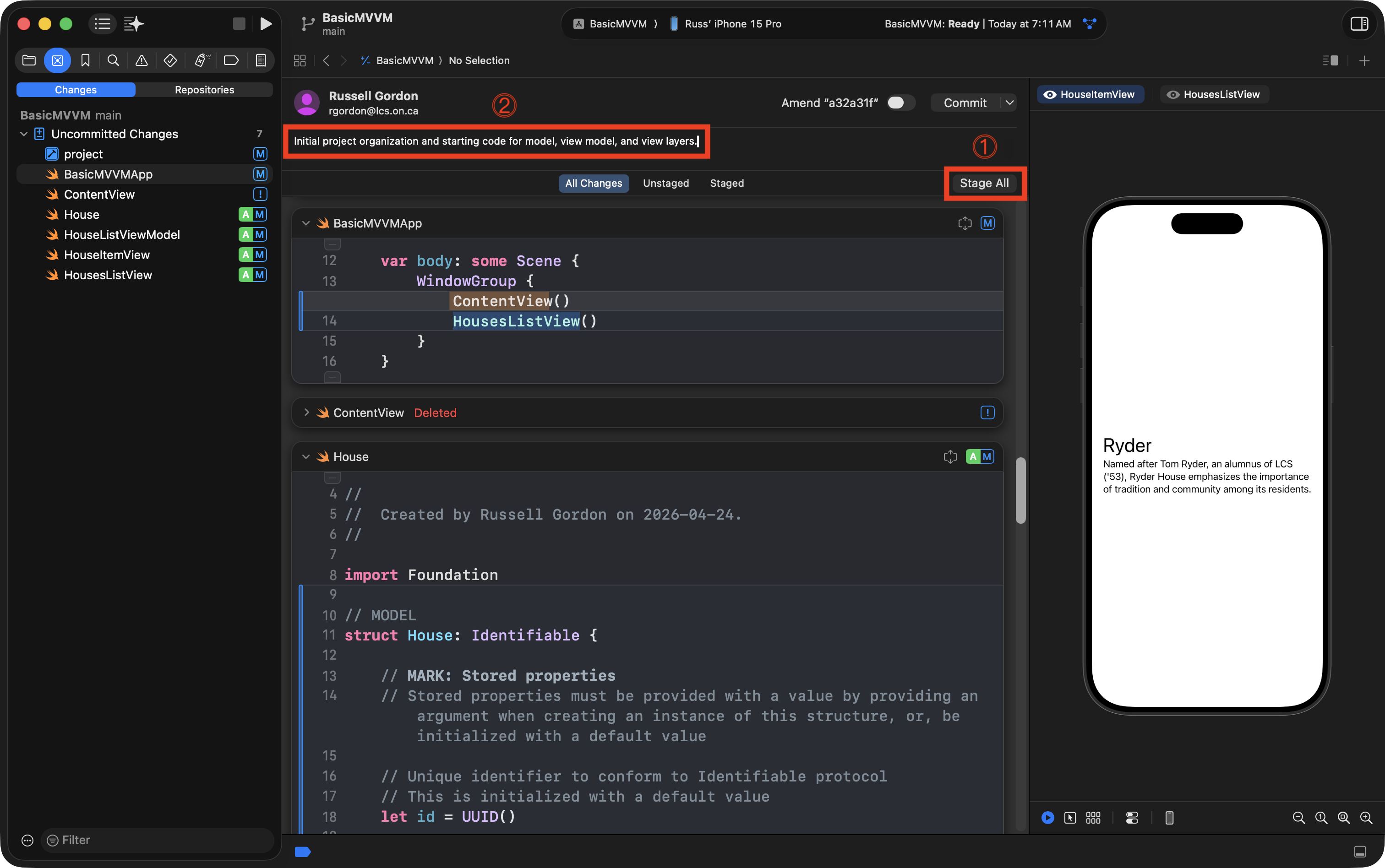
First, stage all of your changes – this tells Xcode what files to include in your commit – then provide a descriptive comment:
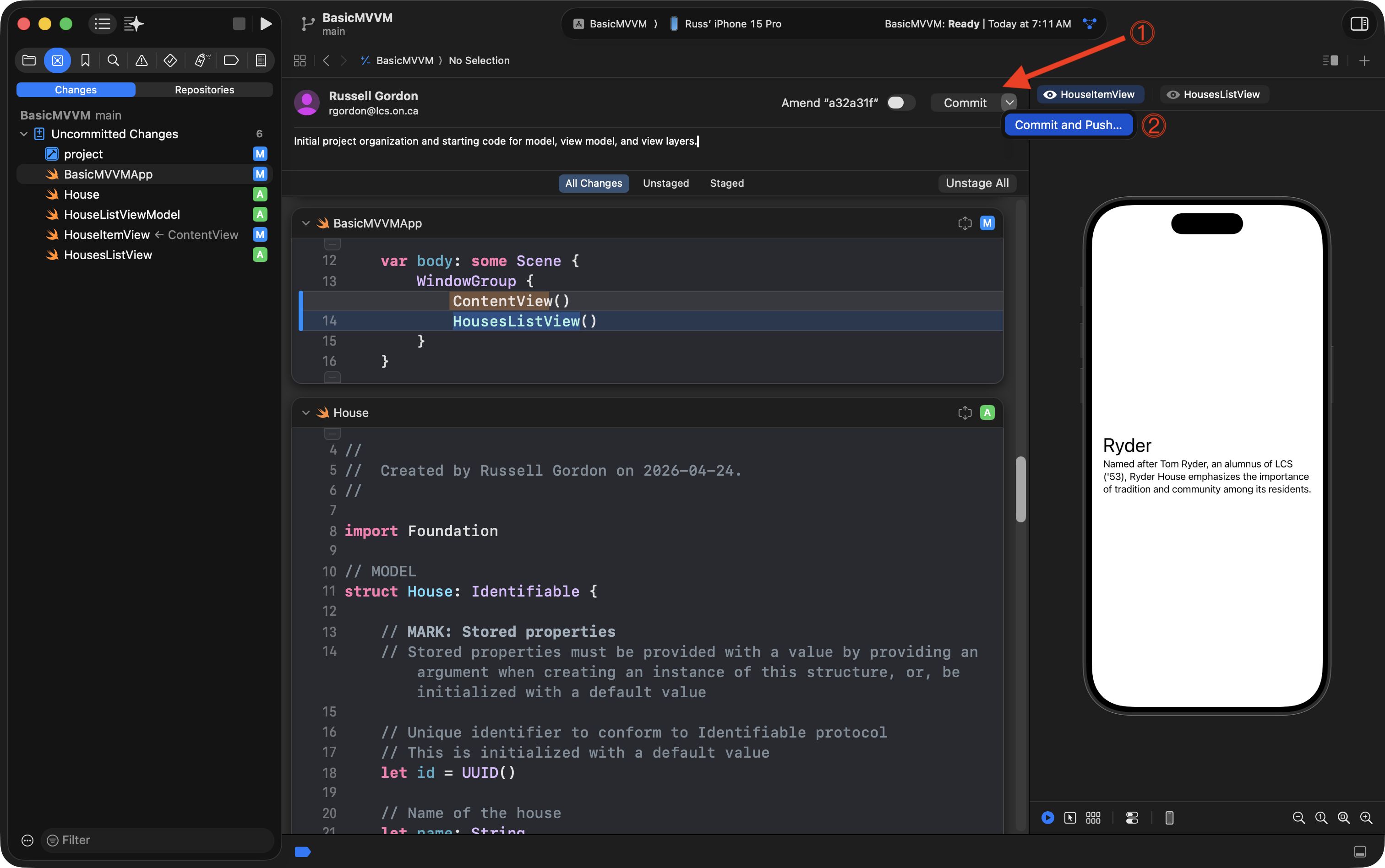
Then, press the arrow beside the Commit button, and choose Commit and Push:
Push all commits
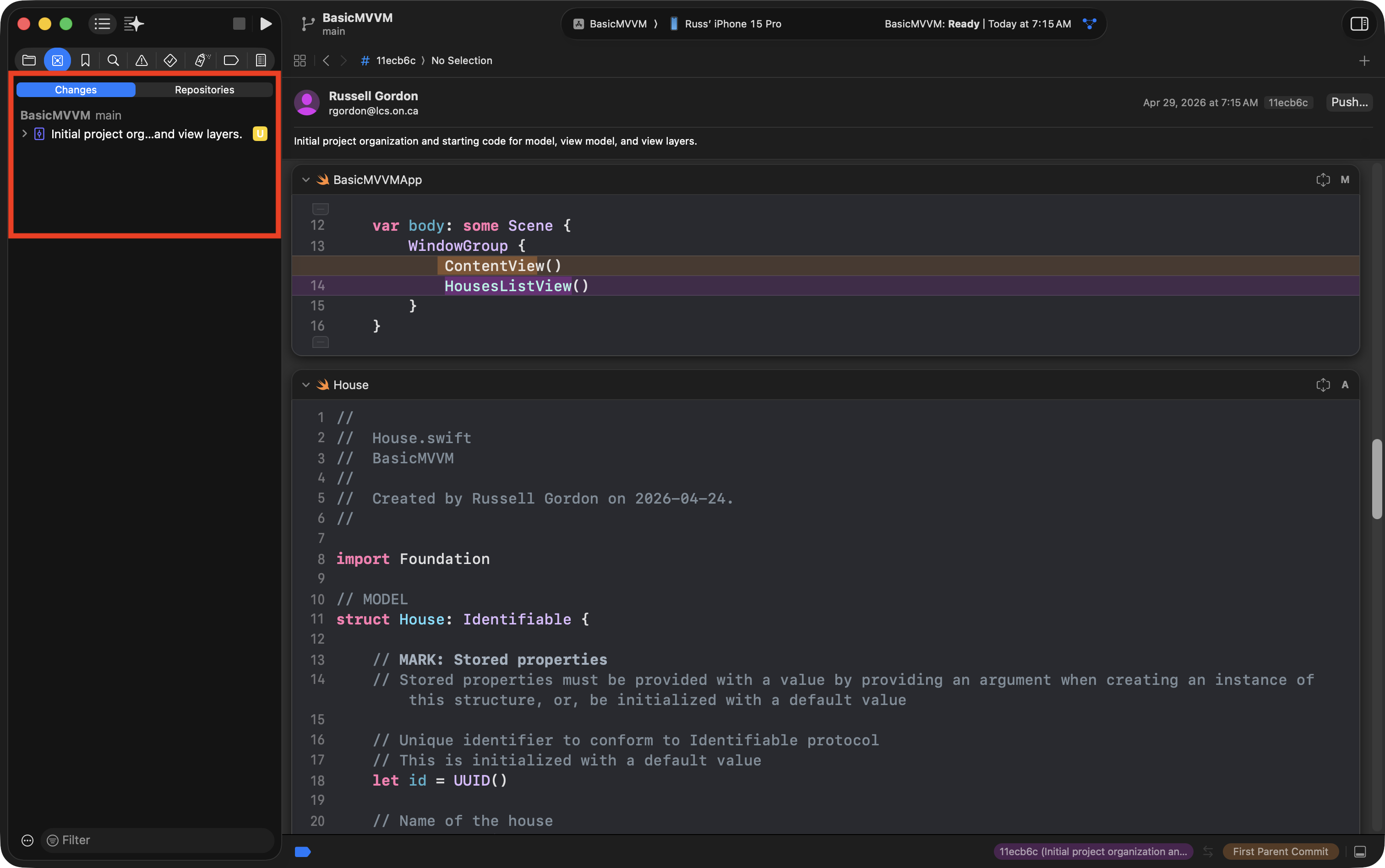
If you have forgotten to push when making commits locally, you will see a list of local commits that have not been pushed on the Changes tab:
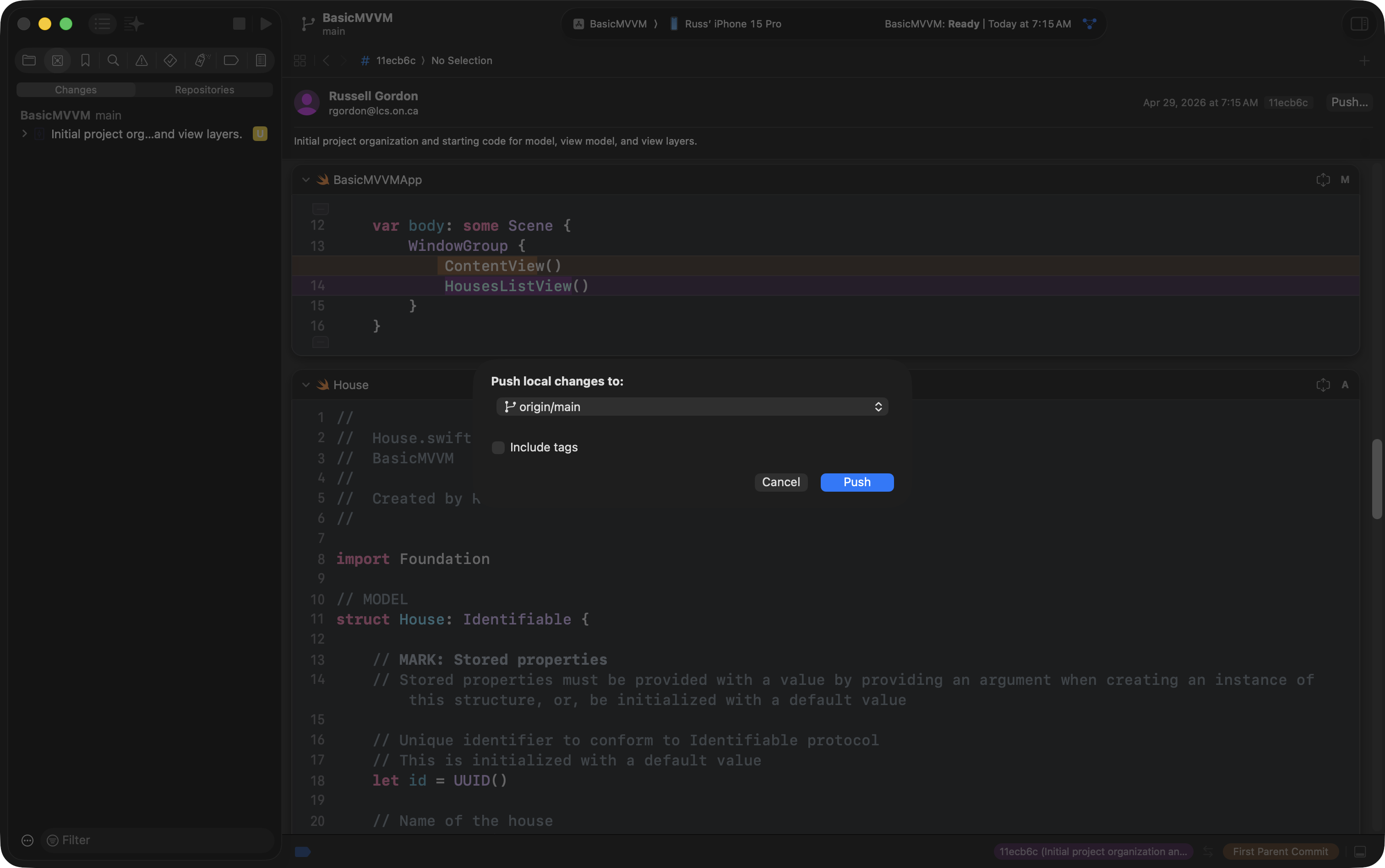
You can push that entire list of commits by choosing Integrate > Push from the menus in Xcode:
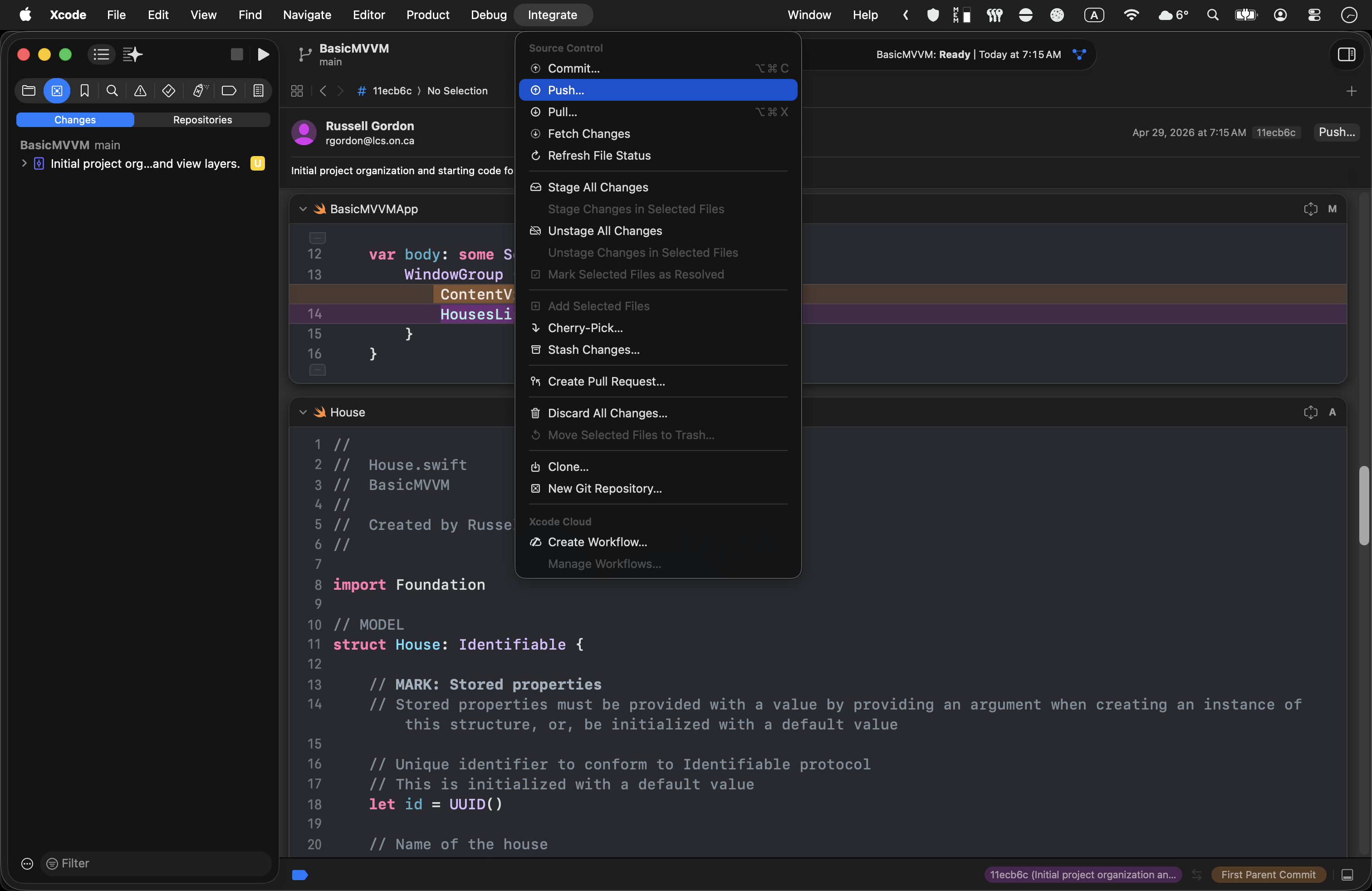
Then press the Push button:
After pushing local commits, the Changes tab will be empty:
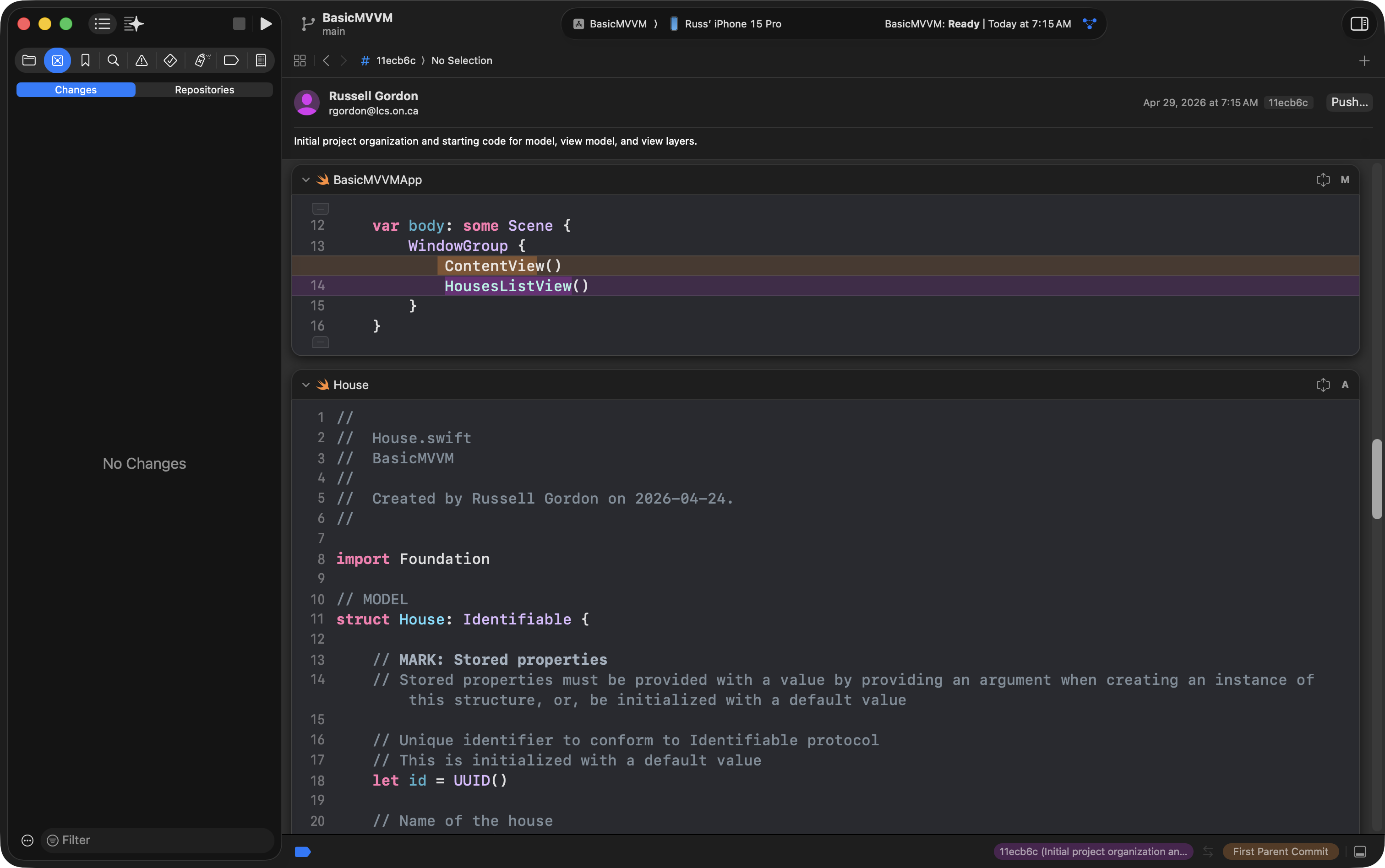
When you see an empty Changes tab, you know that you have pushed all local commits to your remote repository. 🎉